dailynewsnblog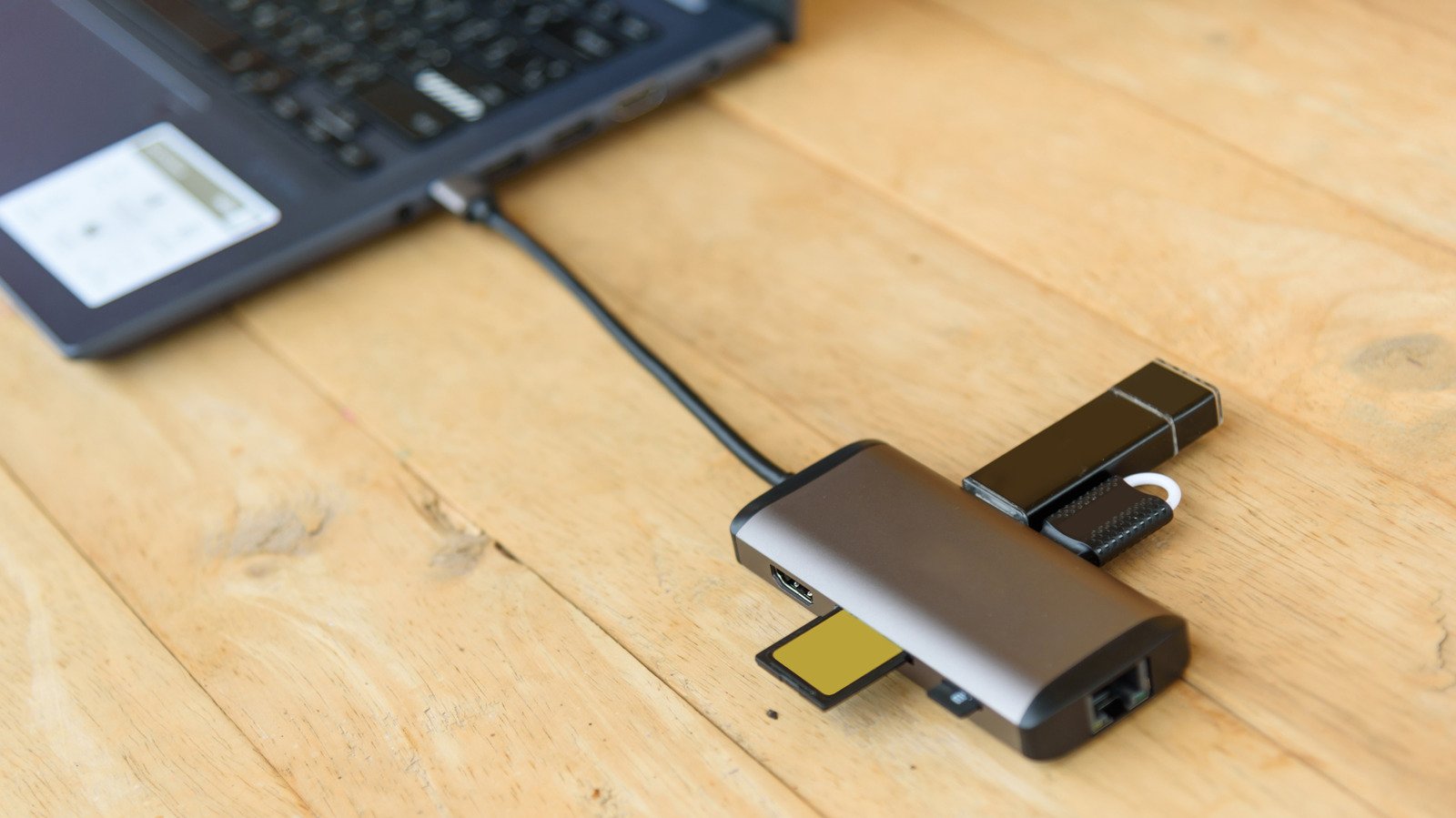
It’s time to stop collecting USB adapters like they’re Pokémon.

We may receive a commission on purchases made from links.
Most of us have a box of old computer cables and adapters sitting around in case we need them someday. Clearly, the “universal” in USB’s “universal serial bus” is a misnomer, given the continued need for adapters to enable cross-device compatibility.
It’s natural to hold onto these, so you don’t have to buy them again; just because you haven’t used a USB adapter in a while doesn’t mean you’ll never need it. But not all of them have equal worth. Some are so outdated that you don’t need to hang onto them anymore. It can be a challenge to make this determination, but it’s doable with a look at what you own and trends in the tech world.
The exact adapters you’ll need depend on what devices you still have around. But in general, you can safely throw out certain types, while others should be kept for the time being.
The most important USB adapter to keep
The most relevant adapters today are those that convert between USB-C and USB-A ports. USB-C is the standard port for smaller devices like smartphones, tablets, headphones, game controllers, and Bluetooth speakers. And while USB-C first became mainstream in 2015 (on devices like the 12-inch MacBook and Chromebook Pixel), the old-school USB-A port is still common on devices like desktop PCs, laptops, and cars. Peripherals such as mice, keyboards, speakers, flash drives, and webcams still commonly use USB-A, as well.
It’s thus wise to hold onto a few for each direction. Being able to plug USB-A devices into USB-C ports means you can connect an older storage drive to your Android phone, for example. Or if your laptop only has USB-C ports (like the Dell 16 Premium), this adapter allows you to connect an older, wired mouse to it. Meanwhile, the reverse direction is important for connecting newer USB-C accessories to machines with USB-A ports. Maybe you’ve purchased a USB-C external SSD, but the only USB-C port on your laptop is used for charging. With this adapter, you can connect the drive to a spare USB-A port.
Beyond basic adapters, you should also keep one of these best USB-C hubs for versatility on hand. These expand a single USB-C port with many vital options, like SD card slots, USB-A ports, Ethernet connections, and HDMI output. With the limited port selection many laptops have now, these add tons of flexibility and are easy to slip into your bag.
Other adapters you might want to hold onto
If you have older Apple devices, it’s worth keeping Lightning-to-USB-C (and reverse) adapters around. iPhones older than 2023’s iPhone 15 series, iPad models prior to the 10th-gen iPad released in 2022, and older versions of accessories like AirPods and the Siri Remote for Apple TV all use Lightning ports. Adapters let you plug your Lightning cables into USB-C charging bricks, or use USB-C accessories (like game controllers) with your device’s Lightning port.
In case you’re still hanging onto wired headphones or use an aux cable in your car, having a USB-C to 3.5mm adapter is important. Most laptops, desktops, and gaming handhelds still have headphone ports, but nearly all smartphones now lack them (as does the iPad). For best results, opt for an adapter that splits the USB-C port into two separate connections for USB-C and 3.5mm cables, so you can charge and use your headphones at the same time.
In your collection of wires and adapters, you might still have Wi-Fi or Bluetooth dongles that plug into a USB port, which are most relevant for desktop computers that don’t offer wireless connections. While modern desktops are more likely to come with these wireless connections, it’s worth keeping spare adapters for emergencies, such as if the onboard adapter fails. They’re also relevant if you’re building a PC using a budget motherboard.
Adapters you don’t need anymore
Broadly speaking, you no longer need adapters that let you connect outdated cable types. Over the decades, USB adapters have been available for lots of old connection types, like serial, parallel, and PS/2 keyboard and mouse ports. These haven’t been relevant for many years, so you don’t need an adapter unless you hold onto these old devices for hobbyist reasons.
Most people can get rid of adapters for Mini-USB and Micro-USB connectors. Mini-USB was primarily used in the 2000s before Micro-USB became the standard; you might still have an MP3 player or PS3 controller that uses it. Some older dash cams use it, too. If you have any of these devices, you should keep a Mini-USB cable for them, but an adapter isn’t necessary. Micro-USB was largely phased out in favor of USB-C, though some devices like flashlights, battery packs, and cheap speakers/headphones still use Micro-USB.
If you want to downsize your adapter collection while still keeping a variety of connections, consider a pack like the YANZIE USB Adapter Kit. It includes a USB-C to USB-C cord along with adapters for USB-A, Micro-USB, and Lightning. In addition to adapters, you can also consider options that have different connectors on each end, like a USB-C to Lightning cable. These bypass adapters, but are less flexible since their ends are fixed and not interchangeable.
Keep an eye on USB specs, too
Beyond knowing which physical connections you need an adapter for, it’s vital to understand the USB standards of the ones you’re keeping. USB has gone through many evolutions to allow for faster data transfers; if you’re digging through old adapters, some of them might be too slow to bother with nowadays. The biggest distinction is between the USB 2.0 and USB 3.0 generations. USB 2.0 is still fine for devices that don’t transfer much data, like mice, game controllers, and printers, while USB 3 (and its later revisions) is superior for anything that transfers data, like external storage drives.
For USB-A devices, blue coloring inside the connector means it’s at least USB 3.0. You can sometimes tell this first generation apart from USB 3.1 and 3.2 by the “SS” (SuperSpeed) logo on the cable, along with a “10” (10Gbps) or “20” (20Gbps) for USB 3.1 or USB 3.2, respectively. These USB 3 standards were retroactively renamed, adding more confusion, but that’s beyond the scope of this discussion. In short: don’t use a USB 2.0 adapter for devices that transfer data, like flash drives.
Meanwhile, USB4 is the latest standard, though because all USB4 cables use USB-C connectors, any existing adapters you own should be compatible.