dailynewsnblog
It’s actually a security feature.
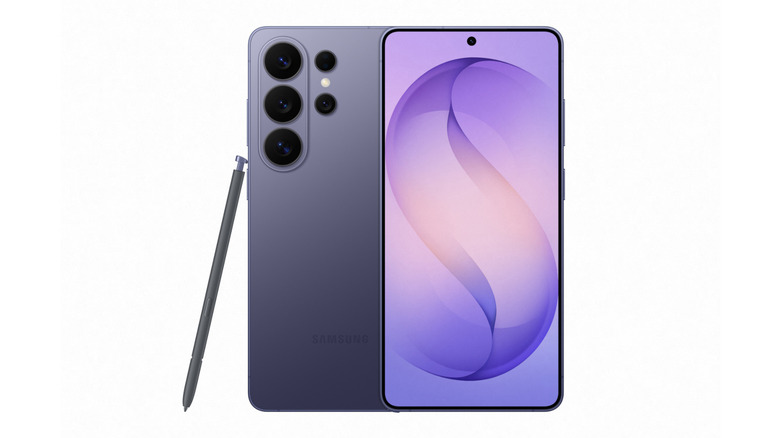
If you have a Samsung phone, you might have wondered at one time or another why a green dot periodically shows up at the top right corner of your screen. I know I had. Don’t worry, it’s not a bug or in any way connected to the green line issue that sometimes affects Samsung and Apple devices. In fact, it’s a security feature that lets you know if you’ve opened an app that’s accessing your camera or your microphone. If you didn’t fire up an application that’s supposed to use your camera and mic, that’s when the green dot appearing becomes a cause for worry.
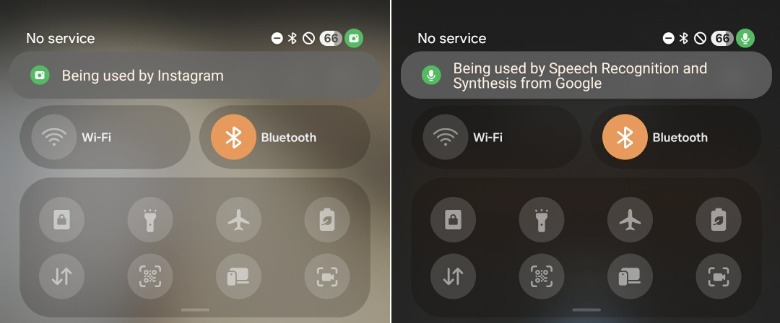
The feature was one of the transparency and security indicators Google had rolled out with Android 12, which was released in 2021. As long as the green dot is there, there’s an app accessing your camera or mic. It only disappears around five seconds after you close the app. The indicator initially appears as a green tab displaying a camera or a mic icon, or both if they’re in use at the same time, before it collapses into a green dot next to your phone’s battery, Wi-Fi and mobile internet icons.
To see which apps are currently accessing your phone and camera, simply swipe down from the top to open your notification bar and then tap on the green dot. It will show you which app has current access, such as your camera or Instagram if you’re posting a Story.
 Mariella Moon for Engadget
In case the green dot is showing up when there’s no app open that’s supposed to be able to access your camera or mic, restart your phone first before running an anti-malware scan if it continues to persist. On Samsung devices, you can do a search for “App security” and then choose the “Google Play Protect” option. From there, you’ll be able to scan your phone to find any harmful apps that may be installed on your device. You can also check out Google’s instructions on how to check your phone for viruses or malware to give it a more thorough inspection.
If you just want to revoke an app’s access to your camera or mic, then swipe down, tap on the green dot and then tap on the “Being used by [app]” tab that shows up. That will bring up permissions for that particular application, where you can set its access from allowed to “don’t allow” or “ask every time.”