dailynewsnblog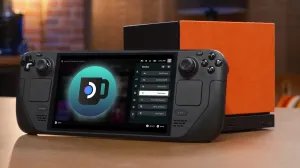

If you’re a PC gamer, you’re probably accustomed to using Discord for voice and text chats during your games. Now that Valve has brought the Steam experience to TVs and handheld devices, you’ll likely want to keep your usual gaming setup intact.
Thankfully, Steam’s devices are pretty much just PCs running on Linux, so they can do most anything you’d want a PC to do. Here’s what you need to know to bring Discord to your Steam device.
How to use Discord on Steam Machine or Steam Deck
The process for bringing Discord onto your Steam-based platform is the same no matter if you’re using the console-like Steam Machine or the handheld Steam Deck. Follow these steps for either case–or both, if you’ve fully invested in the Steam ecosystem.
- Open the Steam menu (press the Steam button if you have a Steam controller) and select Power
- Switch to desktop mode
- Open Discover (blue icon)
- Search for “Discord”
- Install Discord
- While still in desktop mode, open Steam
- Select Add Game at the bottom left of the Steam window
- Select Add Non-Steam Game
- Select Discord
- Select Add Selected Programs
- Return to gaming mode
Fix Discord controller layout on Steam Machine or Steam Deck
Though the above steps are all you need to install Discord on your Steam device, I ran into an extra issue: getting it to work correctly with the default controller layout. With a few extra steps, I was able to resolve this, so I’m leaving those below in case you run into the same problem.
To adjust the control scheme for Discord on Steam Machine or Steam Deck:
- Open Library and select Discord
- Before opening Discord, open its controller settings (controller icon on the right side)
- Change the layout to your preferred option. (If using a Steam controller, I suggest Mouse Only, which will use the right trackpad as a mouse and the right trigger as a left-mouse click, simulating how it feels to use Discord on a desktop.)
If you follow these steps, Discord will be added to your Steam Machine and/or Steam Deck so you can use it in the background while you play other games. You can then switch between game and Discord windows as needed, such as when you want to join a voice chat or close Discord. Like other games/apps, Discord will remain open between uses if you put your Steam Machine or Steam Deck into sleep mode, but it will fully close if you instead choose “shutdown” when it’s time to step away from the device.