dailynewsnblog
It’ll suggest changes and all you need to do is approve them.

If you do a lot of work online, there’s a good chance your Google Drive has accumulated way too many documents, photos and other files. Unfortunately, Google has typically made organizing your digital life through Drive difficult, with a web client that doesn’t have a particularly useful search function to find and move things around. With this in mind, Google recently introduced a tool to help people get their digital lives in order. And before you ask: yes, it uses AI.
Last fall, Google began testing a feature called Organize My Files in Drive, and began rolling it out to Workspace users in June. Like a lot of the features the company has introduced recently, it relies on Gemini. In this case, “Gemini can help you organize your Drive by providing suggestions of where to move loose files based on your organizing structure and strategies,” says Google.
How to get Gemini set up
Before you can task Gemini with cleaning up your Google Drive, there are a few requirements worth noting. First, you’ll need a Google AI Pro or AI Ultra subscription. The feature isn’t available to free accounts, which means it will not appear in Google Drive’s interface if you aren’t already a paid user.
If Google Drive is your primary cloud storage, this requirement is not the worst thing to spend your money on since the AI Pro subscription, priced at $20 per month, comes with 5TB of additional space and a YouTube Premium Lite subscription (amongst other things).
Organize My Files in Drive is also available to Business, Enterprise and Education customers, but keep in mind you won’t be able to use your workplace account to organize your personal files. Additionally, you can’t use Gemini to organize files and folders you share with your colleagues. The feature only works with private folders.
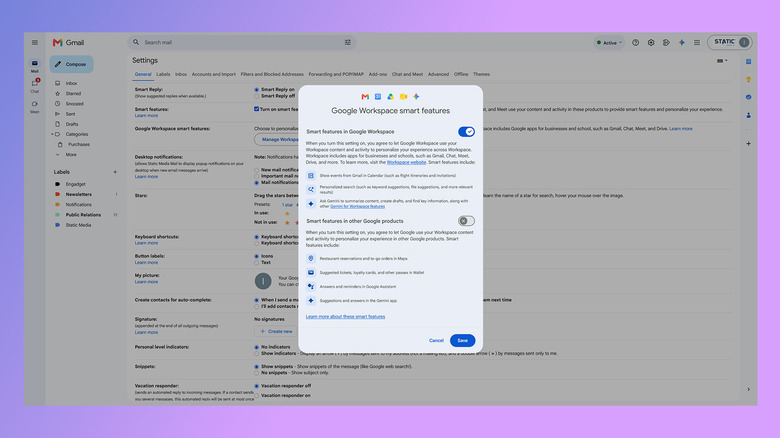
Next, you need to enable Smart features in Google Workspace. This setting is enabled by default in most markets where Google offers Workspace. If you’re unsure if smart features are active on your account, here’s how to check:
- In Gmail, tap the cog icon.
- Select See all settings.
- Under the General tab, scroll down and click Manage Workspace smart feature settings.
- If turned off, enable smart features in Google Workspace.
How to use Gemini to organize your files
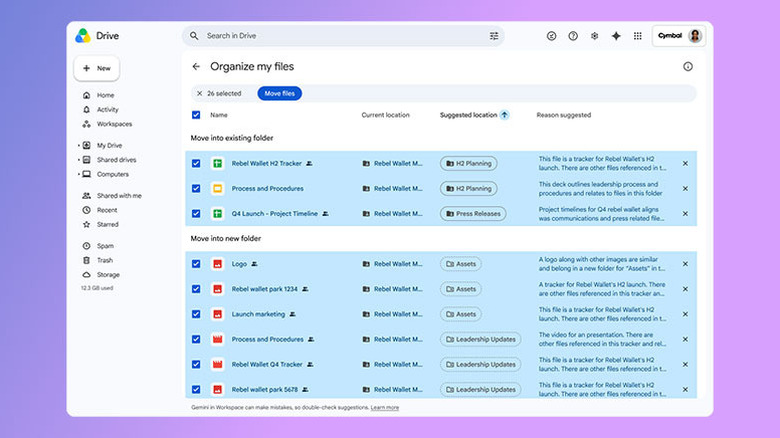
Once you’ve met the above requirements, using Gemini to organize your files is straightforward.
- Open Google Drive on the web and select My Drive.
- Click Suggest file moves toward the top of the interface.
- Review Gemini’s suggestions, which you’ll see in a new window.
- Approve any changes you want Gemini to carry out by using the checkboxes next to each action.
While reorganizing your Google Drive, Gemini may recommend you create new folders to store your files. You can preview every file or document it suggests moving through the cards that appear when you hover your mouse over them. One thing Gemini won’t do for you is rename your files. For that reason, how much utility you get out of the tool will vary.
Gemini doesn’t appear to read the contents of your documents to generate its suggestions. So you’ll get the most out of its organizational efforts if all your files are already named and follow some sort of naming convention and hierarchy. If you have a lot of untitled documents, Gemini may not be able to help you.
If you need to go through all your files to name them, you might as well organize them into folders while you’re at it. You’ll then be able to use Gemini in the future to sort any files you forget to properly file after creating them.