dailynewsnblog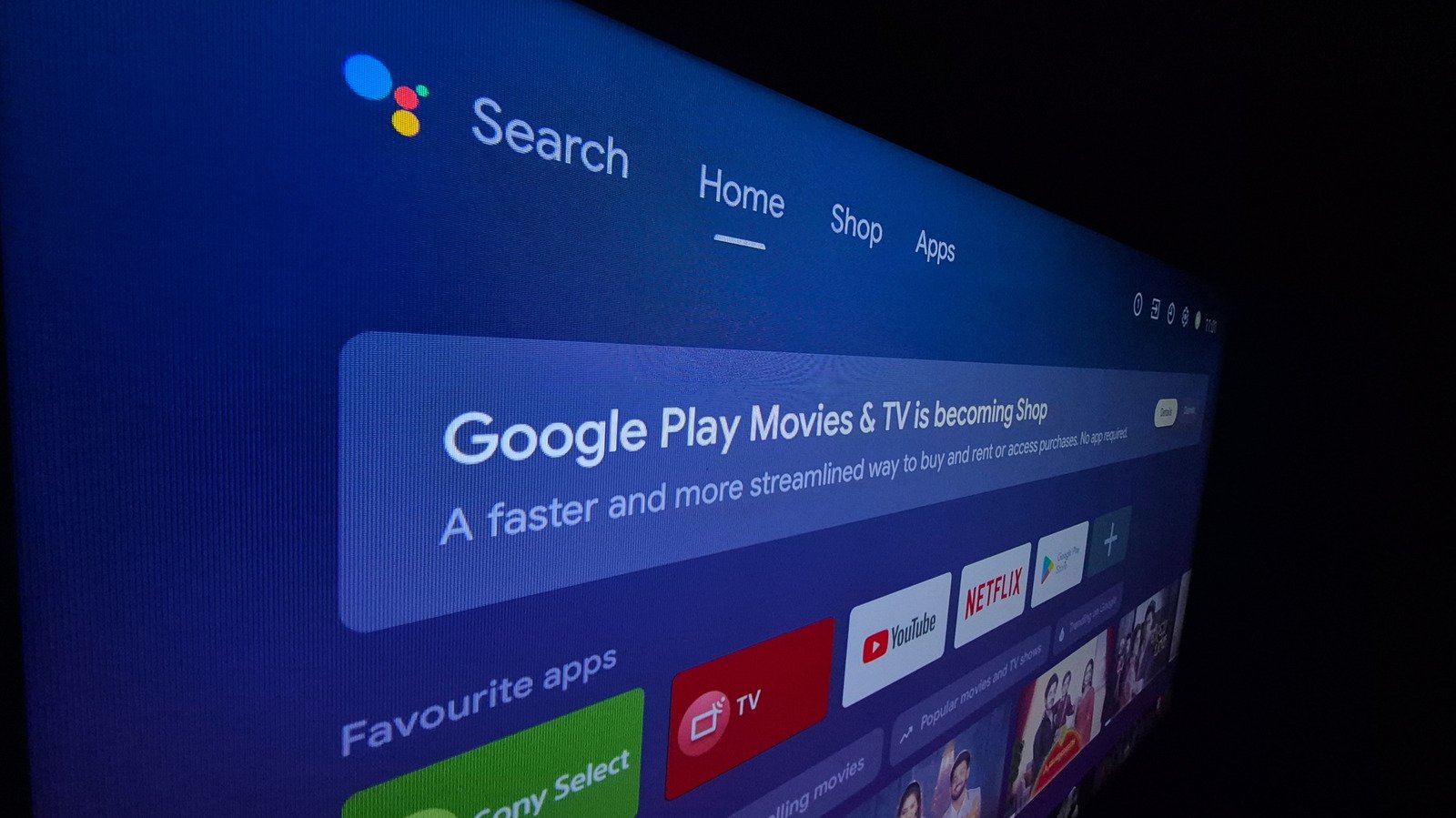
Don’t let an AI bot potentially crash your TV.
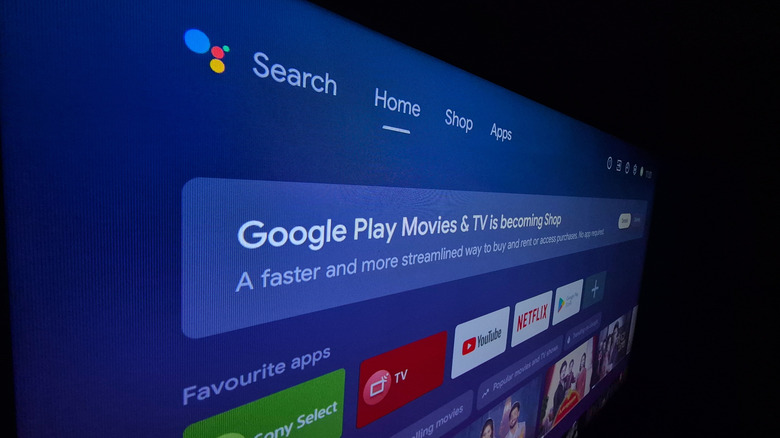
Even fresh out of the box, most smart TVs are bogged down with unnecessary software, including unwanted apps and advertising tools. One developer recently had enough, and gave AI agent Claude full access and instructions to debloat his TV.
Mert Cobanov gave Claude a series of debloating prompts and posted about it on X, saying his four-year-old TV is now running better than ever. He encouraged followers to follow his workflow, publishing it in full online. But even if you are frustrated with your smart device, it’s not necessarily the best practice to plug Claude in and let it go wild — as we well know, agents often make mistakes and are less likely to admit when they don’t know the answers. Let’s explore why auto-debloating can go wrong, and review some options for streamlining your TV that don’t involve leaving an AI agent to its own devices.
The state of things: TVs are full of bloatware
Smart TVs are increasingly common: by the end of 2026, more than 50 percent of households are expected to own one — up from 34 percent in 2020. But chances are good your TV comes with some pre-loaded software that you don’t want or need. Samsung TVs, for example, ship with approximately 20 percent of total storage already taken up by its operating system. The majority of pre-loaded software consists of streaming apps like Netflix, YouTube, Prime Video — and some companies even prevent customers from uninstalling them.
Another major source of bloatware is software that enables data collection about user behavior for advertising purposes, including Automatic Content Recognition (ACR) — which regularly catches screenshots of content on user televisions. Not only has such software led connected TVs to become a “privacy nightmare” for viewers, as the Center for Digital Democracy concluded, it can also slow down your operating system.
How Claude can debloat a TV – and why that’s not the best idea
Many users are looking for ways to decrease the amount of unused software stored on their Smart TVs. In Cobanov’s case, he opened the developer options on his Android TV, and then told Claude to connect and debloat it. His Claude prompt, which he published in full online, commanded the agent not to uninstall anything, but instead disable unused applications, shorten animation durations, and keep a record of all actions for later review.
Cobanov also disabled Google TV’s home screen, which he said is largely full of ads and “recommended for you” content. He instead installed FLauncher, a free and open source app available on the Play store that simply displays a grid of the TV’s apps.
“The big payoff was that the TV now runs smoother than when it was new, four years ago,” Cobanov posted on X, adding that it did this all without root access.
While Cobanov did include some guard rails in his prompt to prevent Claude from over-stepping and disabling important applications, users should be careful if following his lead. Giving Claude full debugging access risks making your TV unstable or unusable — AI is prone to mistakes, and if it hallucinates or makes a wrong move, you may risk disabling a critical component. If key packages are uninstalled or disabled, your TV may be unable to undergo system updates in the future. What’s more, AI prompts can also be hacked by malicious actors.
How can I remove bloatware from my Android TV?
While fully overhauling a smart TV using Claude seemed to have worked for Cobanov, it isn’t always necessary: Sometimes freeing up memory can be as simple as clearing your cache, with no app deletion or disabling needed.
And, as is often the case with AI, most of what was done to debug this developer’s television is possible — and safer — for a human to do manually. FLauncher, the app meant to replace the Google homescreen, is available for download without giving Claude system access. Other apps are readily available in the Google Play store that can perform similar functions, allowing you to choose which packages on your TV you want to run and which ones you don’t.
To make the TV run more quickly, you can adjust a number of settings under the hood to tweak functions that may be slowing the device down. Many of these can be accessed in the Developer Options section of Android TV’s “settings” app. Once that is enabled, you can adjust animation-related controls, decreasing them from 1x to 0.5x to make your television run more quickly and responsively. You can also disable autoplaying videos on your home screen, disable usage diagnostics and enable “apps only” mode.