dailynewsnblog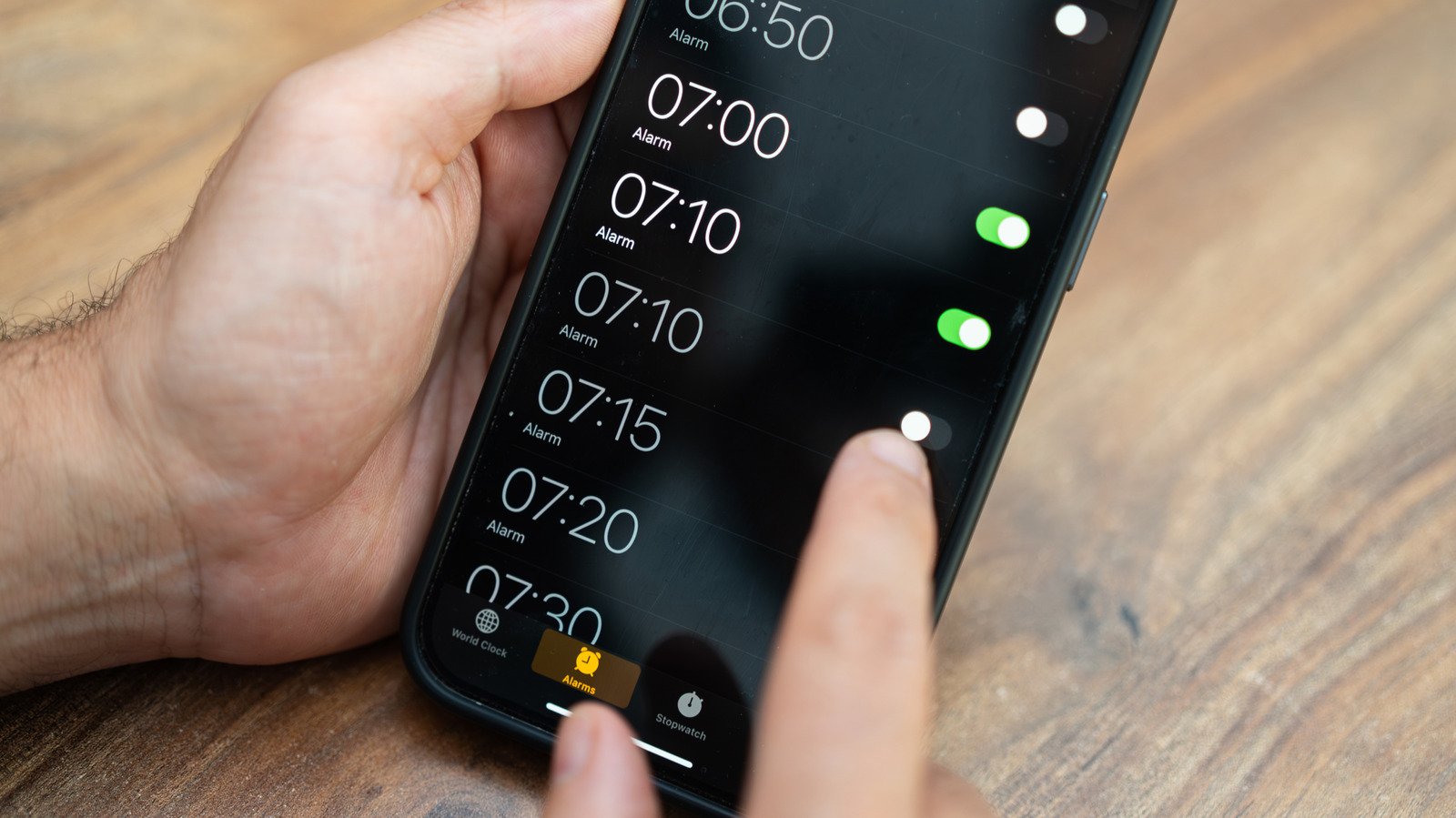
There’s a limit to how far your alarm settings will scroll, and most people never reach it.
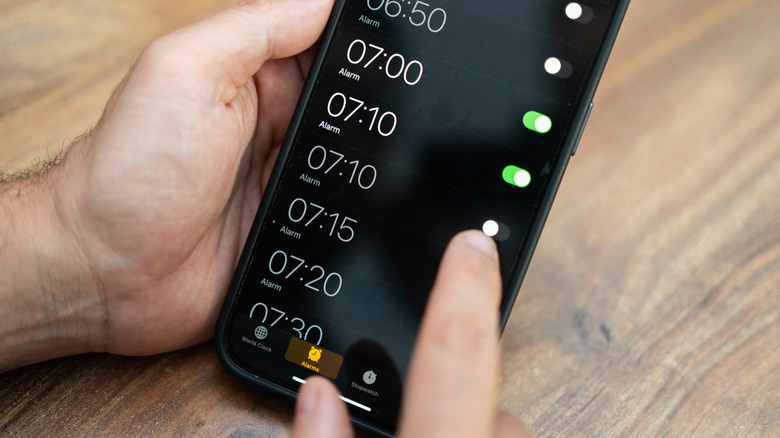
The iPhone Clock app has been around since the original iPhone launched 19 years ago, and for most, it’s always been a fairly straightforward default app. However, there’s a small curiosity hiding within the alarm settings that went viral in mid-2025, along with another quirk we’ll talk about below. To put it simply, the alarm hour and minute scrolls seem infinite at first glance, but rapidly scrolling through the hours and minutes will eventually reach a dead end at 4:39. For those with a preference for military time, it ends at 16:39. Go ahead, give it a try and see for yourself.
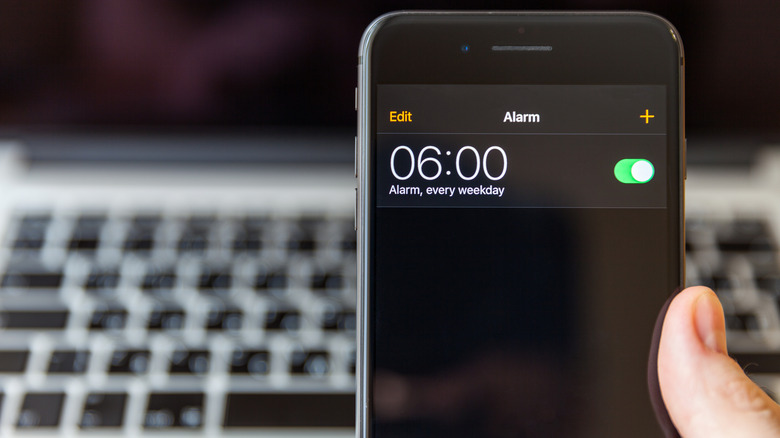
Open the Clock app, select Alarms, tap the + button and start scrolling through the hours and minutes until you reach the end. It will take several swipes, but not too many if you scroll through as fast as you can, which is the reason why most people never noticed it in the first place. However, this little endpoint doesn’t mean you’re limited in setting alarms.
So why does the iPhone alarm stop at 4:39? The specific hour and minute seem a little strange and random, right? Well, Apple hasn’t weighed in on this, but reports and online discussions offer differing explanations, like something called Tableview that an X user thinks is involved. For the most part, just treat it as an interesting idiosyncrasy. The numbers don’t add up to 23 or anything, so there’s no need to delve into conspiracy theories.
The icon tells time
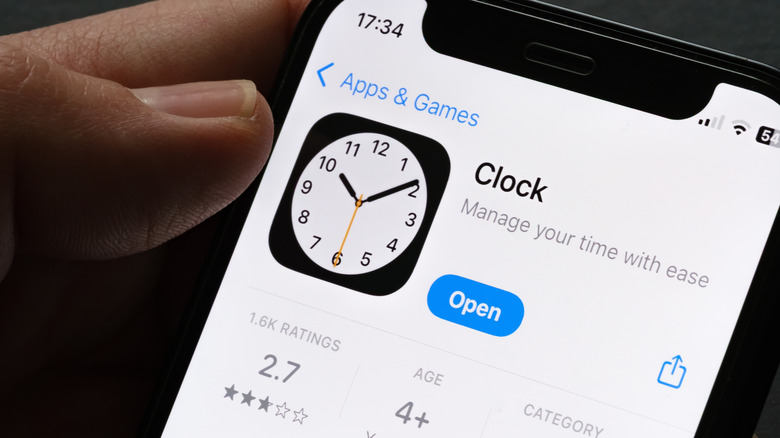
Who knew? But seriously, there’s another little detail here that’s easier to spot once you know where to look. The Clock app icon isn’t static. It tells you the current time, including a moving second hand. Apple introduced this feature in iOS 7, back when we were still grunting and finger painting on cave walls. If you’ve always opened the app to look at the time, you never really had to.
Also, there’s an even subtler feature alluded to in the opening paragraph. Normally, the second hand moves in a continuous “sweeping” motion all the way around. On iOS 26.1 devices and later, however, Low Power Mode changes the motion to a once-per-second tick, like a traditional quartz clock. It still tells the time, of course, only with a less fluid animation. This is only a visual change, and there’s no audible ticking involved.
If you’re looking for one more option that’s hidden in plain sight, open Stopwatch inside the iPhone Clock app and swipe across the display. You can switch between digital and analog stopwatch faces without installing another app. Unlike the alarm’s endpoint, this is a documented feature that’s included in the iPhone user guide.
How do I change the appearance of the clock app on my iPhone?
Now that the Clock’s dirty laundry is out in the open, how about changing the app’s appearance? Both the worst and the best iPhones offer a few clock-display options, though they’re far from the aesthetic variety offered by other apps.
If you want a large bedside alarm clock, connect your iPhone to a charger and stand it up on its side. This places it in StandBy mode, which displays widgets, photos or just a good old-fashioned clock. Change the types of clocks displayed by swiping to the left or right.
Last but not least, you can enable Night Mode so StandBy mode adapts to the low-light environment of a typical bedroom when it’s sleepy time. The screen will display a heavy red tint, so it’s a little less intrusive, especially if the bedside table is level with your face. It’s not a mysterious oddity or anything, but there it is.
However, if you expect your iPhone to behave exactly like a standard bedside clock, you’ll need to make sure Always-On Display is active in Settings. It works best to slap a MagSafe charger with a kickstand on the back. Some older iPhones don’t have Always-On Display, so you’ll have to give the screen a little nudge to turn it on or you can pester Siri about it.