dailynewsnblog
Google Maps can keep a log of everywhere you go. If you find that more creepy than useful, it’s easy to disable.
Google Maps has introduced tons of innovative features over the years, from 3D driving directions to telling you how crowded a business is. One particular feature is more divisive: your location timeline, which logs everywhere you’ve traveled for later reference. As useful as this option can be, perhaps helping you recall the name of a restaurant you stumbled upon long ago, it can also feel like an invasion of privacy.
For many people, having a log of your location constantly running in the background is too much like Big Brother. If that data fell into the wrong hands, someone could learn a lot about you. It’s worth noting that Google has shifted from storing your location history on the cloud to locally on your device unless you perform a manual backup, but the desire to stop one of the many ways you’re being tracked is still understandable. Thankfully, turning off Google’s location history feature is easy.
How to turn off your Google Maps Timeline location history
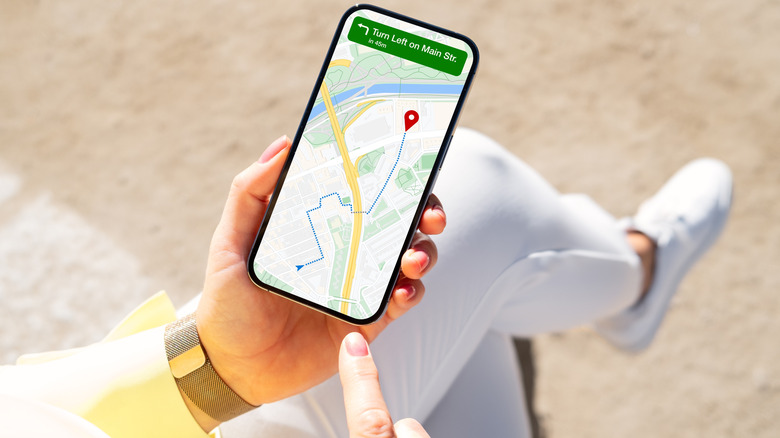
You can globally turn off your Google Maps Timeline using the Location settings in Google’s My Activity panel. However, since Timeline data comes from your phone and can only be viewed there, you might wish to change these settings from your phone for completeness.
These settings are device-specific, so if you also use Maps on a tablet or second phone, you’ll need to go through the process again there. If you ever want to turn it back on, follow the same instructions, but select Turn on during the final step instead.
Open the Google Maps app, then tap your profile picture located on the right side of the search bar.
Select Your timeline.
Hit the three dots at the top-right corner, then choose Location and privacy settings.
Select Timeline.
From the dropdown menu, select Turn off to stop using the feature but keep existing data, or Turn off and delete activity to also clear all historical data.
If you’d rather keep recent locations accessible for a while but clean them up every so often, you can manage your auto-delete settings on this same menu. Scroll down to the section labeled Auto-delete and select Choose an auto-delete option. From the dropdown list, select whether you’d like to delete activity older than three, 18, or 36 months. Also on this page, you’ll see a few Subsettings that control other ways this data can be used.
The other pages visited along this path offer options for fine-grained control. On the main Timeline page, tap the Backup (cloud) icon at the top to enable or disable an encrypted backup of your device’s Timeline data to your Google account. Use the Pencil icon at the bottom-right to edit or delete a given day. On the Location & privacy page, you can Export Timeline data to back it up on another device, or Delete range of Timeline data if you need to clear a lot.