dailynewsnblog
You’re not limited to only apps you can get on the Play Store.
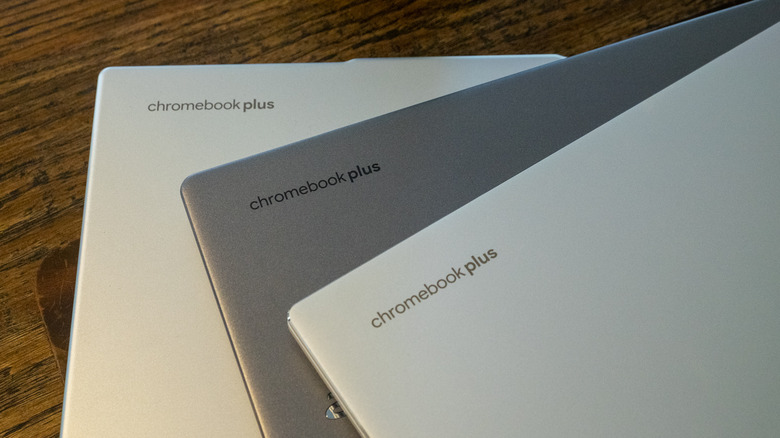
A Chromebook can be a pretty flexible device. You can use it for productivity, to play games, watch movies and so on. To do these things, you might download apps from the Google Play Store. Linux apps and progressive web apps are supported too.
But maybe the experience you’re looking for isn’t available on the Play Store. Perhaps you haven’t seen a Linux app or progressive web app that does the trick. Instead, an Android app that you obtain from elsewhere on the internet may be the way to go. You may need to sideload this Android Package Kit (APK) onto your device, and we’re here to detail how to do that.
Before we get into the details of sideloading an Android APK onto a Chromebook, note that you do this at your own risk. Google hasn’t verified apps that you obtain outside of the Play Store. For your own sake, carry out due diligence to determine as best as possible that the APK you want to use is legitimate and free of malware and other nastiness. We’ll leave it to you to find the APK(s) you want.
There are several options for how to sideload an app onto a Chromebook. Enabling developer mode is one way to go. However, doing that will wipe all of the data on your system. Unless you’re setting things up on a brand-new Chromebook, you may not want to deal with that.
Let’s go in the other direction, with Google’s official methods for sideloading APKs on Chromebook. These use Android Debug Bridge (ADB). Note that this approach only works from Chromebooks that hit the market after 2020. This method also requires you to have the APK on your Chromebook already. We suggest renaming the file to something simple before installing it.
Using Android Debug Bridge to sideload apps on Chromebook
The first step is to enable Linux on your Chromebook, if you haven’t already done so. Open the Settings app, click the “about ChromeOS” option on the left, scroll down to “Developers” and then click “set up” on the Linux development environment option. Then go through the brief setup process, which includes setting aside a dedicated portion of storage space for Linux (you can modify this allocation later via the system settings).
Now you need to go through the same process until you get to “Linux development environment,” which now has its own sub-menu. From here, click on “Develop Android apps” then toggle “Enable ADB debugging” on. Your Chromebook will restart at this point, so make sure you save all your work and such first.
After your system reboots, you should see a message that reads “This device may contain apps that haven’t been verified by Google.” Just like that, the first part of the process is sorted.
We now have a couple of options to run the APK on your Chromebook. The first is by using Terminal. Here’s what to do:
Search for and open Terminal
Select the Penguin option
Install ADB, if you haven’t already done so, with this command: sudo apt install adb
If Terminal asks whether you want to continue, press the “Y” key
Next, input the following command: adb connect arc
To proceed, you’ll need to authorize USB debugging from the dialog box that pops up. Check the box that reads “Always allow from this computer” and click Allow
The last step is to install the APK. To do that, first move or copy it to your Linux Files folder
Input this command — adb install filename.apk — with the actual name of your APK in place of “filename.apk”
You should then be able to run the app you installed by searching for it in the Chrome OS launcher
Using Android Studio to run sideloaded apps on Chromebook
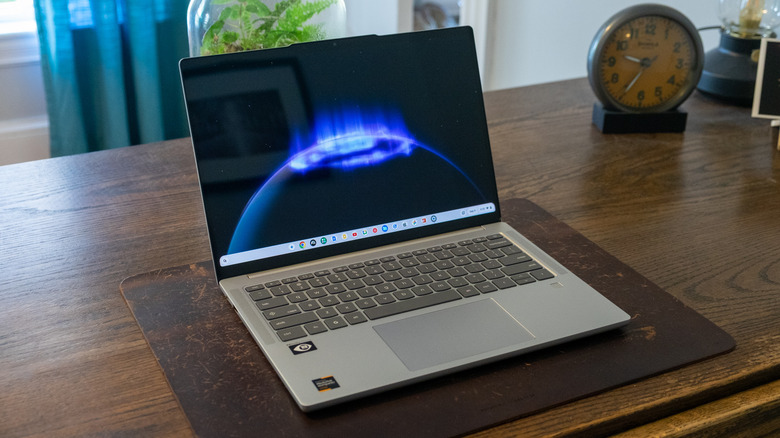
Alternatively, you can run the APK using an emulator in Android Studio. If you don’t already have Android Studio set up, go to the Files app > My files > Downloads and locate the DEB package. Move or copy this to Linux Files. Then, in the Linux terminal, run the command “sudo apt install ./android-studio-panda2-cros.deb.” (Note that the filename for the DEB package might be slightly different, so make sure to account for that.)
After you open Android Studio, you can create an Android Virtual Device. This simulates an Android phone, tablet, Wear OS, Android TV or Automotive OS device. It’s up to you which you’d rather go with, though tablet and Android TV offer landscape formats.
All you need to do after that is drag and drop the APK onto the emulator screen. After the app is installed (an APK Installer box will pop up to indicate that’s happening), you can access it from your apps list.