dailynewsnblog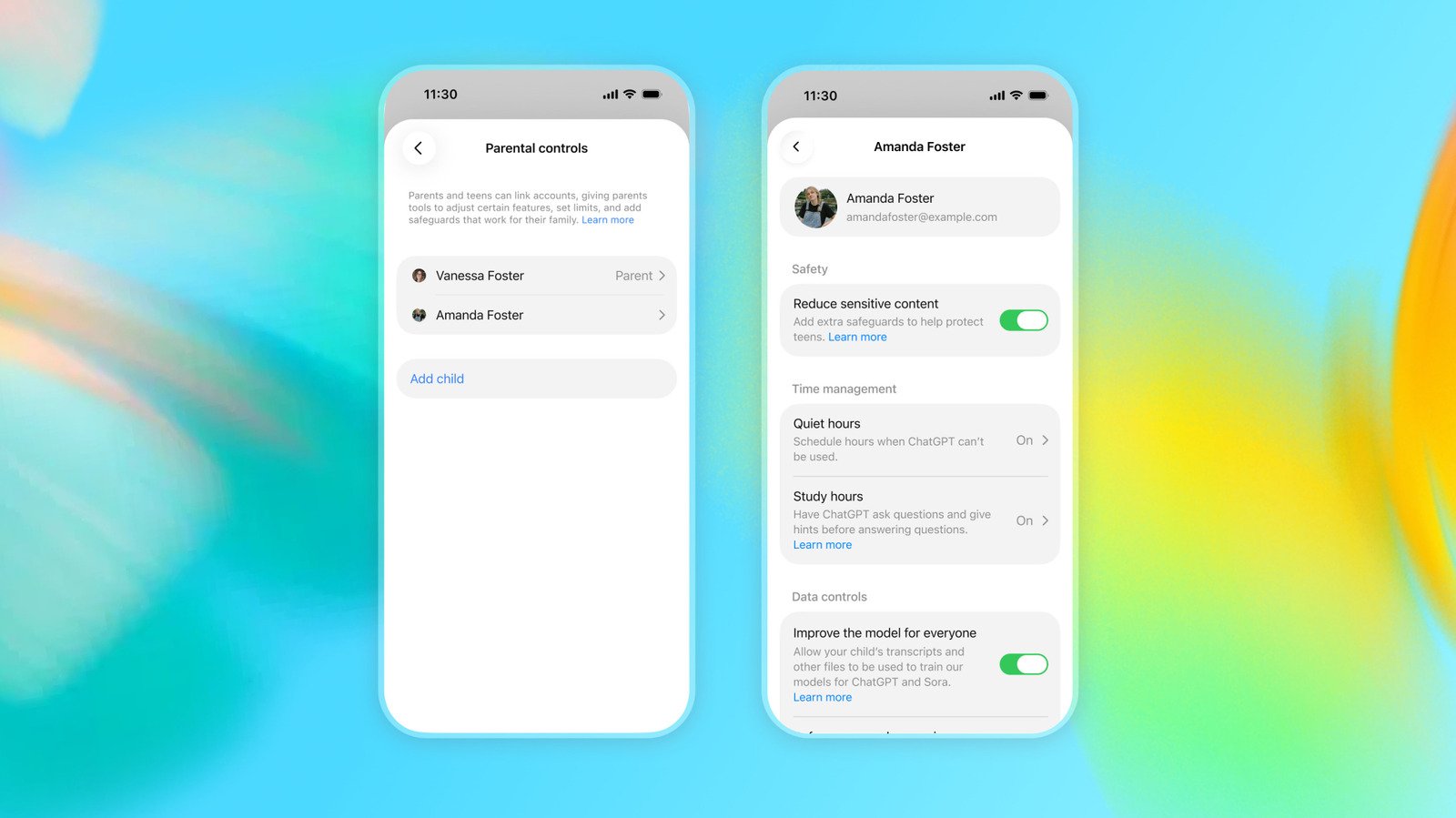
Work out which features suit your child best to give them the best possible start with AI.

After almost a year of development, OpenAI released ChatGPT for Teens in August. The company is touting the experience as an educational tool with stricter content controls and features designed to promote healthier AI habits among young people. OpenAI says it automatically enrolls users it believes are under the age of 18 into ChatGPT for Teens. However, as with most tech platforms, child safety experts believe the mode’s default restrictions don’t go far enough to ensure young people have a safe and productive time using ChatGPT.
From a pedagogical standpoint, many of the mode’s most important features require parents to link their ChatGPT accounts with their child’s account and toggle them on or off. If you’re unfamiliar with ChatGPT, finding those settings can be tricky. This guide will show you exactly where to find those settings, describe what they do, and offer a few best use recommendations.
How to link ChatGPT accounts
Before you can apply parental controls to your child’s ChatGPT experience, you need to link your accounts together:
Open the Settings menu from your profile page.
Select Parental controls. On mobile, you can find that section under App settings.
Tap or click Add family member.
Under Invite by, select Email or Phone.
Enter your teen’s email address or phone number.
Under This person is, select My child.
Click or tap Send.
After you select send, your teen will receive an email or text inviting them to link their account. Once they accept, you’ll see their name appear under the Family members section of the Parental controls menu. Select their name to review or change their individual settings.
Teens can also invite a parent to manage their account by following the same flow outlined above, but rather than indicating the account belongs to a child, they should select My parent or guardian instead.
Parental controls are only available while a child is under the age of 18. If OpenAI determines a ChatGPT for Teens user is now an adult, the company will move that person over to the regular ChatGPT experience. As a parent with a linked account, that transition will result in a few changes.
OpenAI will first send you and your child a message, notifying you both about the account status change. Any parental controls you had enabled will be disabled, and the connection between your accounts will be severed from that point on. It means you can no longer manage your child’s account settings and you’ll no longer receive teen safety notifications.
What do the settings do?
Once your account is linked with that of your teen’s, you’ll see close to a dozen options before you. Below are descriptions of each one, along with whether it’s turned on or off by default.
Reduce sensitive content: Controls whether stronger safeguards designed to reduce “sensitive” or “age-inappropriate content” are imposed on your teen’s account. By default, this option is enabled.
Improve the model for everyone: Controls whether OpenAI can use your teen’s conversations to train future ChatGPT models. By default, this option is enabled.
Reference saved memories: Controls whether ChatGPT can personalize its responses based on past conversations it has had with your child. Depending on the local regulations, this option is enabled by default in some regions and disabled in others.
Codex network access: Controls whether ChatGPT Work, OpenAI’s productivity agent, can connect to public websites and other online services. By default, this option is enabled.
Cloud browser: Controls whether ChatGPT Work can visit public websites through its built-in browser. By default, this option is enabled.
Voice Mode: Controls whether your teen can use ChatGPT’s Voice Mode. By default, this option is enabled.
Image generation: Controls whether your teen can use ChatGPT’s built-in image generator to create and edit images. This is available by default.
Study Mode: Controls whether any new conversation your teen starts with ChatGPT begins with Study Mode turned on. In Study Mode, the chatbot will try to guide your child to answer a question on their own, rather than giving them the answer outright. By default, this option is disabled.
Study hours: Allows you to set a schedule for when new conversations in ChatGPT start with Study Mode turned on. By default, this option is disabled, with no hours set.
Quiet hours: Allows you to set times when your teen cannot use ChatGPT. By default, this option is disabled, with no hours set.
“Turning off most settings hides or blocks the related feature for your teen. Turning on a setting makes the feature available while ChatGPT’s other safety protections continue to apply,” OpenAI explains. “Your teen cannot change settings managed by a parent or guardian while your accounts are linked.”
How do ChatGPT safety notifications work?
Linking your ChatGPT account to your child’s account is also necessary if you want to receive safety notifications. These will trigger if your child discusses harming themselves or others with ChatGPT. According to OpenAI, a safety notification may include a brief description of what the safety concern is or details about an account deactivation, should ChatGPT’s automatic safeguards kick in. It will also offer relevant support resources or information about contacting OpenAI Support, if it’s needed.
“We notify parents via text, in-app, and email. All flagged content is reviewed by full-time OpenAI employees before a parent is notified, and we aim to notify parents within an hour of the prompt,” Lauren Jonas, OpenAI’s head of youth and families, told Engadget of the company’s moderation process.
What settings should you enable?
If you’re unsure how to configure ChatGPT for your teen, these are my recommendations based on my experience reporting on OpenAI and ChatGPT for Teens. First, if you’re going to allow your child to use ChatGPT at all, you should strongly consider disabling Reference saved memories. As a reminder, this option allows the chatbot to personalize its responses based on past conversations it has had with your child.
When OpenAI announced ChatGPT for Teens, Engadget spoke with Josh Golin, the Director of Fairplay, a nonprofit that advocates for policies designed to make the internet safer for children. Golin identified memory as one of “the most attachment-driving design features” of ChatGPT. “Long-term memory use is a huge piece of this: the less a chatbot remembers about a user, the less chance it has of forming a relationship with them,” he told me. Research on teen use of chatbots is emerging, but a recent study from Drexel University appears to support Golin’s claim, pointing to personalization and memory use as two features that make it difficult for young people to disentangle from what feels like an authentic relationship with their favorite chatbot.
I would also disable Improve the model for everyone. Personally, I wouldn’t want OpenAI using my child’s conversations to train its future models. I can’t see most teens using ChatGPT Work, so you can probably ignore Codex network access and Cloud browser for now. I would leave image generation and Voice Mode enabled. While a lot of people use image generation to make silly memes, it can also be a great tool for making infographics. Voice mode is great for accessibility.
As for Study Mode, and related features, you should ask yourself how you want your child using ChatGPT. Do you want them using the chatbot strictly as a educational tool or do you want to give them more freedom? ChatGPT for Teens includes smart homework reminders (see above), which are designed to nudge a teen to use Study Mode when the system detects they’re trying to get ChatGPT do their homework, but like most reminders, those can be ignored. For most teens, I think it’s best to set specific hours after school where ChatGPT defaults to Study Mode.