dailynewsnblog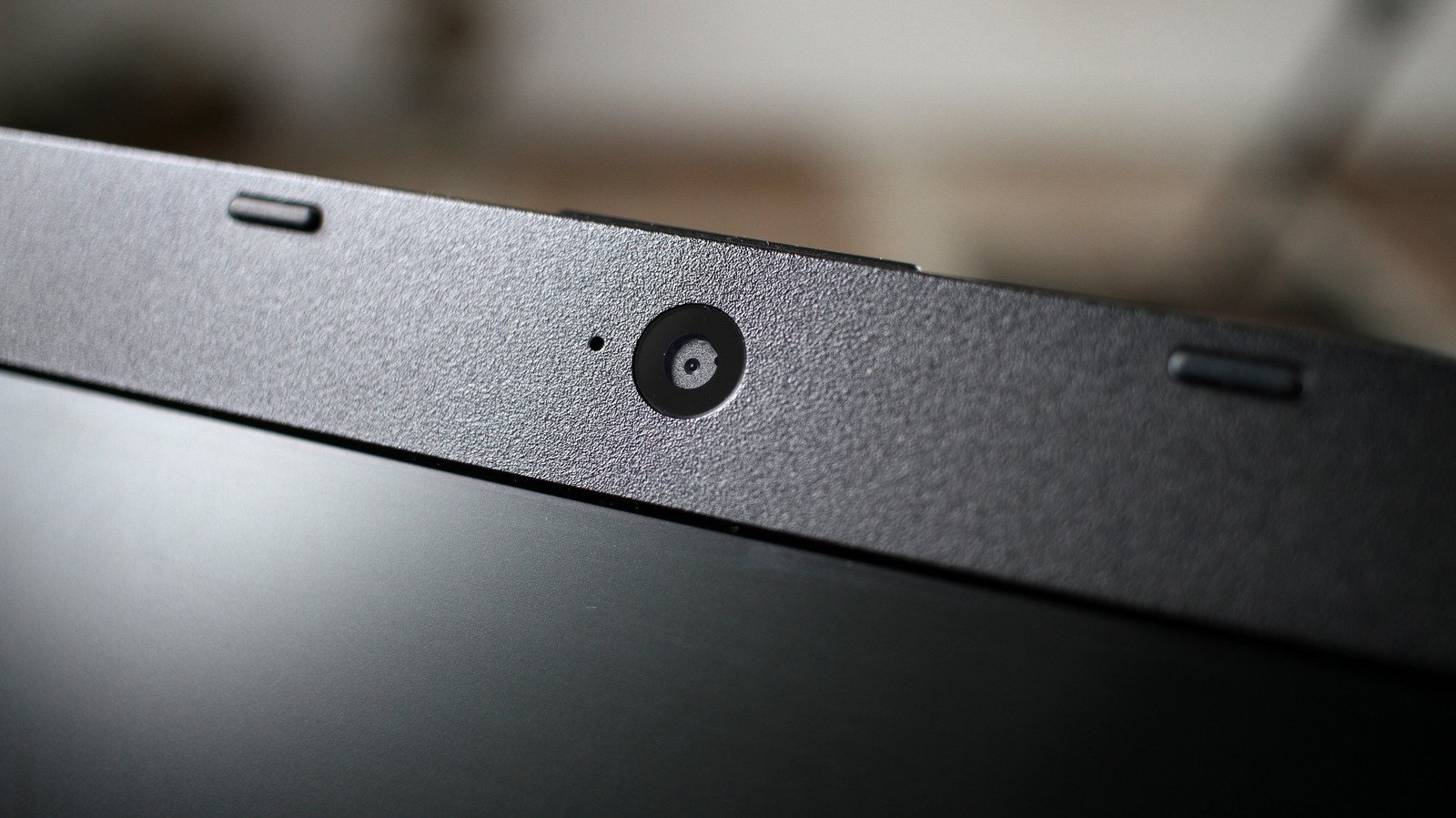
It’s not hard for your laptop camera to look bad, but you can fix it.
You’ve probably wondered why the webcam on your laptop looks so bad. It’s hard to point to a single reason, since factors like ambient light can have a major impact on how a camera’s image looks.
Though in many cases, this is an inherent hardware issue. Laptop manufacturers have to fit a camera into an ultra-thin lid — we’re talking about millimeters in thickness. Large camera sensors, like the ones found in smartphones, won’t fit on a laptop lid, and smaller sensors capture less light. The result is an image that might look blurry, grainy or washed.
The good news is that there are a few tricks to help improve your webcam’s image. Some of them are as simple as changing a few settings on your laptop, while others may require you to adjust the lighting in your room. While they can take a bit of effort, they’re cheaper than spending money on a new external webcam.
Lighting matters a lot
Before getting into the settings, start by cleaning your webcam. The camera on most laptops is in a spot your fingers touch every time you open the lid. Fingerprints can make the image blurry, so wiping down your webcam before a video call is always a good idea. A microfiber cloth is usually enough for cleaning — using household cleaning products can damage your screen.
Lighting is arguably more important than any software settings. Poor lighting conditions ruin the image, even if you have a good webcam. Most laptop webcams have trouble handling contrast between light and shadow, which is why you should never film yourself with a bright light behind you.
Try facing a window instead of having it at your back. Having a table lamp or an LED light in front of you can help, too. The Elgato Key Light and the Logitech Litra Glow are two of the most popular options for streaming lights.
If you can’t afford an external light or don’t have room for one, your computer screen can double as a light. Macs have a feature called Edge Light, which works like a ring light on your screen. This feature has been available since macOS 26.2 and works any Apple silicon Mac. Windows lacks a feature like this by default, but third-party apps like LightON or Edge Light for Windows can do the same job.
Changing a few webcam settings might help
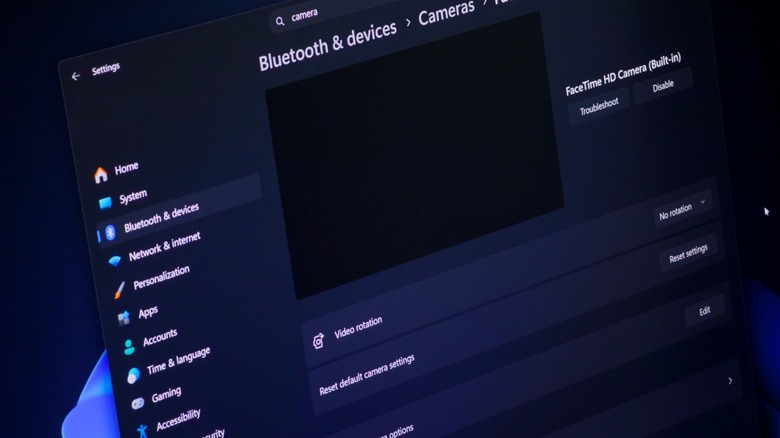
While it can’t overcome a low-quality webcam or bad lighting, software can still help improve your webcam’s image. On Windows 11 PCs, open Settings and go to Bluetooth & Devices. Click Cameras and select your webcam. Depending on your webcam, you’ll have the option to change levels like brightness and saturation. Play around to pick the settings that look best in your room, and they’ll become the new default in any app that uses your webcam. Some cameras also offer Video HDR in this menu, which helps balance the contrast between the darkest and brightest areas of the picture.
Some graphics cards also have their own tools for enhancing webcam image quality. NVIDIA Broadcast uses GeForce RTX cards to improve your video with features like noise removal and eye contact correction. A similar tool called Camo is worth a look if you don’t have an NVIDIA card.
Mac users don’t have this range of options available when using the built-in webcam, but you can try using Studio Light. Just click the green camera icon in the Menu Bar (it only appears when the camera is in use) and look for Studio Light. The Edge Light feature mentioned above is there, too.
If you rely on your webcam a lot and none of these tips have helped, buying a good external webcam might be your best option. You can use a high-end camera as a webcam or use your iPhone as a Mac webcam, too.