dailynewsnblog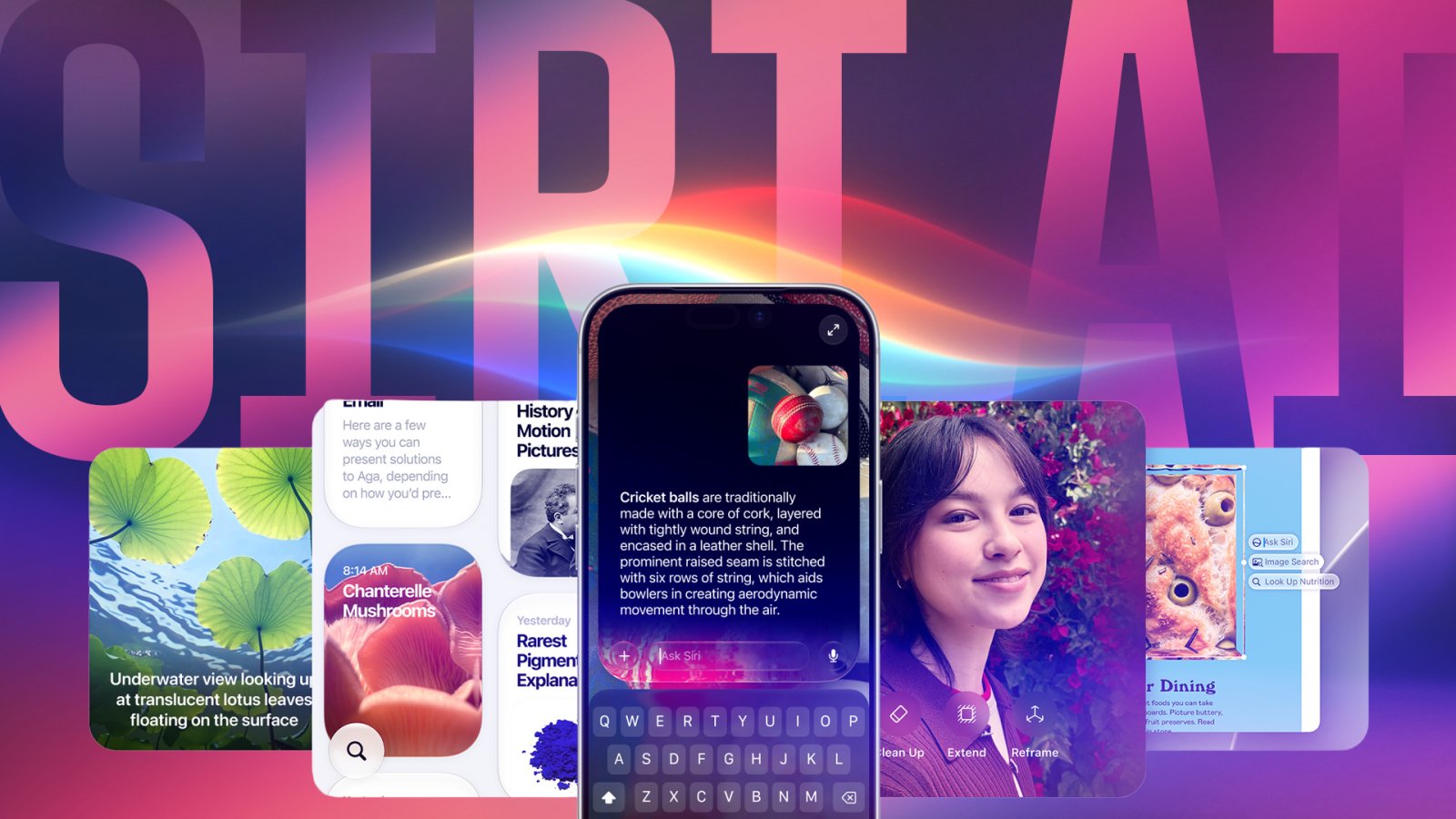
Apple launched iOS 27 and MacOS 27 in September, and those updates introduced a revamped Siri AI powered by Apple Intelligence to Apple devices. While the new Siri was better at most tasks in my testing, it can still take up a significant amount of on-device storage space. On my iPhone, for example, it takes up about 6.4 GB of data, while it takes up about 17.9 GB of space on my MacBook Neo.

If you aren’t using the new AI features, you can disable them, and depending on what system you’re on, you can reclaim some of that valuable storage space. That way you can stave off for a little while the dreaded pop-up that tells you your storage is full – I need that extra storage for photos of my wife, son and dog.
Here’s how to see how much storage Apple Intelligence is taking up on your devices and how to disable – or at least limit – it on different operating systems. And don’t forget, Apple Intelligence is only available on certain devices.
How much space is Apple Intelligence taking up on your device?
How much space Apple Intelligence is taking up on your device is easy to check. If you’re on iPhone, go to Settings > General > iPhone Storage > iOS. From here, look for the Apple Intelligence tab to see how much space it takes up on your iPhone.
On a MacBook, click the Apple logo in the top-left corner of your screen, then go to System Settings > General > Storage, and click the i next to MacOS. A new pop-up will open to show you how much space Apple Intelligence uses on your MacBook.
How to disable Apple Intelligence on your iPhone
Disabling Apple Intelligence on your iPhone that’s running iOS 27 or later is straightforward. Go to Settings > Siri > Turn Off Siri and follow the on-screen prompts. You can then go back and check your storage, and Apple Intelligence should be gone from that menu.

If you’re running iOS 26, you can disable Apple Intelligence by going to Settings > Apple Intelligence & Siri and tapping the toggle next to Apple Intelligence. This should free up some space on your iPhone.
You might also have to disable other Apple Intelligence features across your iPhone. To do this, go to Settings > Screen Time > Content & Privacy Restrictions and tap the toggle next to Content & Privacy Restrictions. Then, tap Intelligence & Siri. From here, you’ll need to tap into Image Creation, Writing Tools and Intelligence Extensions and tap Don’t Allow in each one.
This should free up a few gigabytes of space on your iPhone.

How to disable Apple Intelligence on your Mac
Disabling Apple Intelligence and freeing up storage space on your device can be weird, depending on which operating system you’re using. For instance, if you’re on MacOS 26, it’s easy to disable the feature and free up space. If you’re on MacOS 27, it’s a little more complicated.
We’ll start off with the easy one. To disable Apple Intelligence on MacOS 26, first click the Apple logo in the top left corner of your screen. Then go to System Settings > Apple Intelligence & Siri and click to toggle next to Apple Intelligence. That should free up a few gigabytes of data on your device.

There are a couple of potential ways to disable Apple Intelligence on MacOS 27. The easiest way I found to free up a few gigabytes of space is to click the Apple logo in the top-left corner of your screen, then go to System Settings > Siri and change your language to something like English (Irish). Siri AI isn’t available in every region yet, so changing your Siri language to a language from one of those regions could trick your device. Granted, it freed up only about 4 GB for me.

CNET’s sister site PCMag has a more in-depth way of turning off Apple Intelligence and freeing up some space. However, I couldn’t get this method to work. I’m not sure why I couldn’t get this method to work, other than that my device is running MacOS 27.0.1 and not MacOS 27. Maybe this will work for you, though.
According to PCMag, you have to go to System Settings > Screen Time > Content & Privacy. Then, toggle Content & Privacy off. Click Siri and change it to Siri Classic. Then go through the list of Capabilities and turn each feature off.
You’re not finished yet. Then, go to System Settings > Siri and select Don’t Allow Siri or Siri Classic.
Finally, you’ll need to go into individual Apple Intelligence settings and disable those features. Some easy ones include going to System Settings > Notifications > Summarize Notifications and turning the toggle off, or going to System Settings > Messages > Settings and turning off Message Summaries.
You could do all that work, or you could just switch your Siri language as I did. The choice is yours.
For more iOS news, here’s what to know about iOS 27 and iOS 27.0.1.

See full bio