dailynewsnblog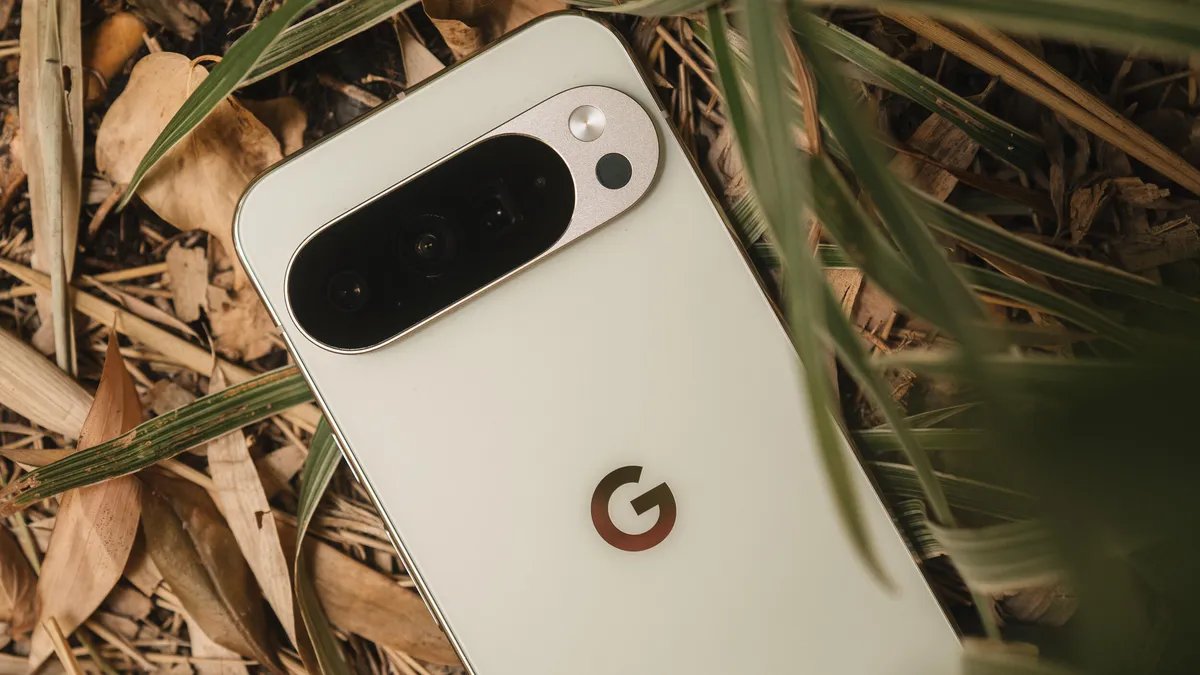
Google’s Pixel phones are essentially the most AI-centric phones available today, and they have been for a while. It’s true that most smartphones now ship with AI in some capacity, but it’s at the core of the Pixel experience, and that will only continue to grow as time moves on.
If you’re not sold on the Pixel AI features or just don’t want it peeking around the corner every time you tap something on your phone, then you might have tried to find a way to turn it off completely — and likely failed. That’s because you really can’t turn on all AI on a Pixel phone, but there are ways you can turn off some features.
Reducing AI on a Pixel is more involved than disabling AI on your Google account, but with a little time and effort, you might be able to get where you want to go.
For this article, I’m using the Pixel 10 Pro XL, which is absolutely packed with AI, but many of the options below can also apply to the Pixel 9 and Pixel 8 series of devices.
Uninstall or disable AI-driven apps or features
Disabling some of the AI settings may affect other parts of your phone, so take note of the features you turn off so you know to enable them again if your Pixel starts acting odd.
Journal
New for the Pixel 10 is the AI-centric Journal app. Though the app is an interesting idea, it’s one of the first expendable apps you can uninstall.
Screenshots
The Pixel 9 introduced a dedicated screenshots app that would process the content within them to make them easily searchable. You can choose to uninstall the app completely or head to the app settings and toggle the Search your screenshots with on-device AI to off.
If you previously had this feature enabled, you’ll have the option to delete all of the AI summaries and metadata created from the previously processed screenshots.
Google Photos
AI is front and center in Google Photos, but you can reduce Gemini features in the app with a few taps.
- Tap your profile icon.
- Go to Photos settings.
- Head to Preferences, then Gemini features in Photos.
From here, you can disable Gemini completely in Photos or turn off individual features, like Ask Photos, Gemini-powered memories and Help me title.
Disable the following apps:
- Pixel Studio
- AI-Core
- Private computer services
- Android System Intelligence
Messages
In messages, Google added a dedicated Gemini button that you can choose to remove if you don’t want to see it.
- Open Messages.
- Tap your profile icon.
- Tap Message settings.
- Tap Gemini in Messages.
- Toggle Show Gemini button to off.
Phone app settings
The Pixel phone app is loaded with AI features that are pretty nifty, but you can turn them off easily in the settings.
- Open the Phone app.
- Tap the menu button at the top left.
- Tap settings.
- Disable the AI features under the Call Assist section.
Disable Circle to Search
Another feature you may or may not use is Circle to Search. It’s baked right into your Pixel, so here’s how to turn it off if you don’t use or want it.
- Go to Settings.
- Tap System.
- Toggle Circle to Search to off.
Remove AI mode from the Google Search
The Pixel Launcher’s Google Search added an AI mode button to the static search bar on the home screen, but you can remove it if you want a cleaner look.
- Open the Google App.
- Tap your profile icon.
- Tap Settings.
- Tap Customize Search widget.
- Select a “none” or a new shortcut.
Revert back to Google Assistant
Gemini is the primary digital assistant on Pixel phones, so if you want to switch back to Google Assistant, here’s how to do it. Keep in mind that Gemini is set to replace Google Assistant, so this option may not be available in the future.
- Open Gemini.
- Tap your profile icon.
- Tap Switch to Google Assistant.
- Confirm your selection.
- Tap Switch.
Uninstall Gemini
Once you’ve reverted to Google Assistant, go ahead and uninstall Gemini. If you want, take a look at your Gemini Apps Activity beforehand and delete any old data you don’t want Google hanging onto.