dailynewsnblog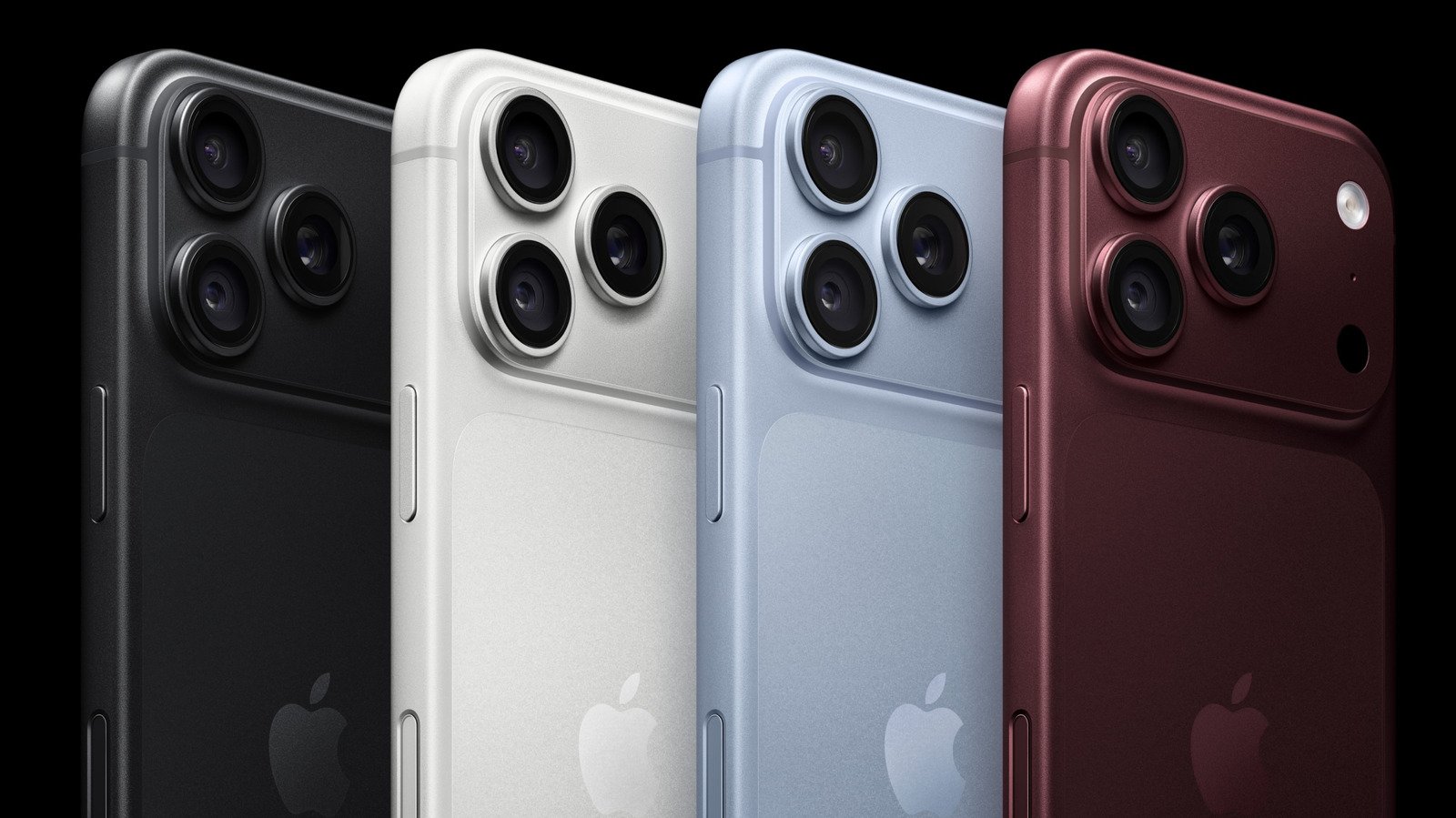
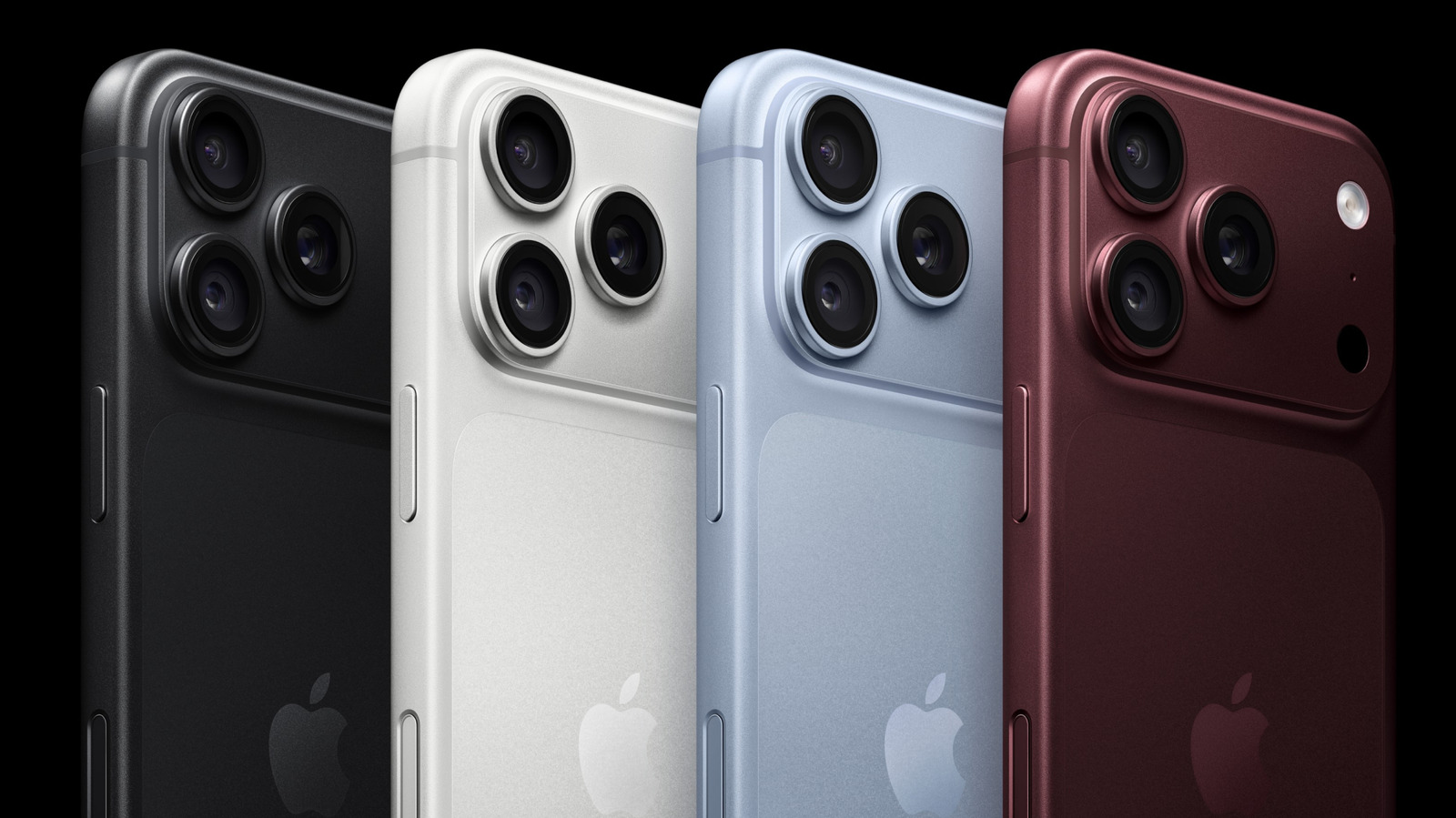
Make your iPhone’s camera behave exactly how you want
Are you getting everything you can out of the button at the lower right of your iPhone 16, 17, and 18 series? The button is the phone’s Camera Control, which can be customized to support your mobile photography workflow.
To clear up any confusion, Camera Control refers to the capacitive button on the right side of your iPhone, which understands a range of gestures, including single- and double-clicks and swipe gestures. You use it to open the camera, take pictures, record videos and work with the advanced photography settings on your iPhone.
Perfect for one-handed photography, Camera Control’s default inputs are:
- Click the button once to launch the Camera.
- Swipe to use different photography tools such as exposure or zoom while in the app
- Click again to take the image.
- Long-press to capture video.
- Double-click to launch Visual Intelligence, which lets you use the camera to ask Siri questions about your surroundings.
How to customize the Camera Control button
You can change the default behaviors in Settings > Camera > Camera Control. This takes you to a pane of many options, including two important sections you should explore first: Launch Camera and Controls, alongside several smaller tweaks.
For Launch Camera, tap Camera to choose which supported app to open when you press the Camera Control button. Camera is enabled by default, but you’ll find other options if the relevant app is installed. These may include Instagram, which makes your iPhone an instant story creation tool, Code Scanner to scan QR codes or Magnifier, which turns your iPhone into a high-powered digital magnifying glass. You may also see other third-party apps, some of which may be grayed out pending full support.
The Controls section includes a range of settings you should explore, including Camera Adjustments. When activated, this makes Camera Control even more useful. When your Camera app is active, light presses or swipes on the button will let you explore camera options and adjustments.
Customize lets you decide what gestures Camera Control supports while in that mode, including support for light presses and swipes. It also lets you enable and disable the six adjustments potentially supported by Camera Control, which include:
- Zoom
- Exposure
- Depth
- Cameras
- Styles
- Tone
Tap to enable and disable the tick beside the function, or press and hold the burger icon (three horizontal lines) beside each item to move it into your preferred order. In the future, when taking a picture, you’ll be able to swipe the Camera Control to move through those different adjustments in the order you define.
Exploring additional Camera Control options
Along with the above-referenced features, Camera Control also allows:
- Single Click or Double Click: Double Click can be best to avoid accidental camera activations.
- Require Screen On: When enabled, this toggle-based control will prevent accidental Camera activation when your iPhone is locked.
- Lock Focus and Exposure: When this is active, Camera Control will maintain focus and exposure so long as you continue to touch it.
- Launch Visual Intelligence: When active, press and hold the Camera button to open Visual Intelligence, which lets you ask Siri about your surroundings.
There are several additional customizations available in Settings > Accessibility > Camera Control. Here you can disable the button completely and define the force and speed required to make the button respond to a press, choosing between Default, Slow and Slower.
I’ve found setting button behaviors to Slow helps stop accidentally opening the Camera when handling my device, and trimming the camera adjustments to Zoom, Exposure and Styles helps me focus on the image, not the controls I don’t frequently use.
That’s the point of Camera Control, really — configure it to support your workflow while making it much, much easier to take photos, videos and use Visual Intelligence with one hand.