dailynewsnblog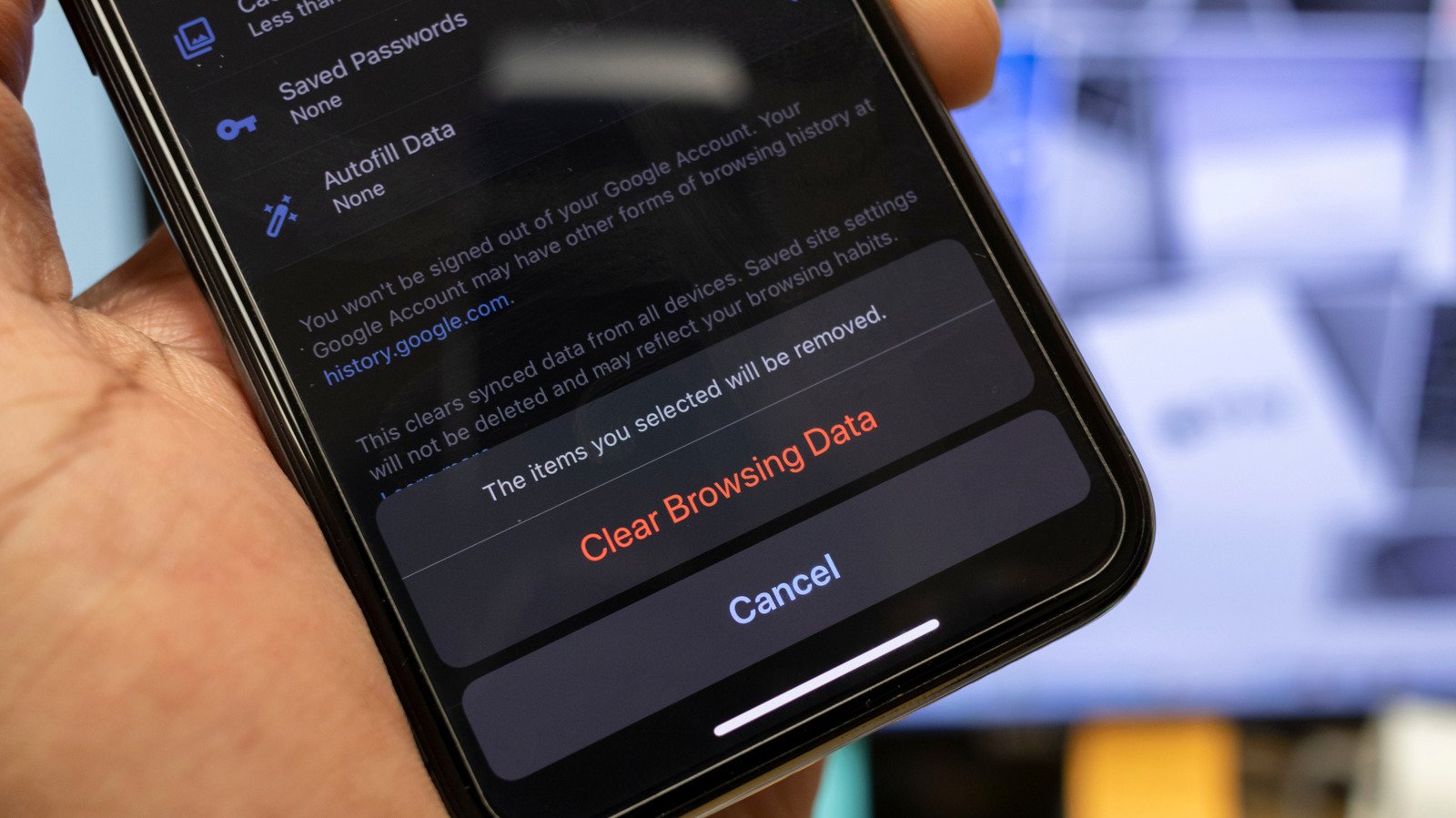
You don’t need to babysit the cache, but clearing it can help when apps start acting up.

Your iPhone’s cache is a collection of data stored to speed up operations instead of loading information fresh every time. For example, if a website has a huge banner image at the top, your browser may cache it. Then, next time you visit that page, it loads the banner from cache instead of wasting time downloading it again.
Cache usually doesn’t use enough space to be concerning, and it helps apps run more efficiently because you aren’t forcing them to reload repetitive elements all the time. However, you’ll sometimes need to clear the cache to troubleshoot a problem or tidy up when these files are taking up too much space. While clearing cache isn’t as straightforward on iOS as it is on Android, you can still remove those files when needed.
There’s no need to do this all the time, however. Your iPhone will create new cache shortly after you clear it, so clearing cache constantly is counterproductive. If you’re low on iPhone storage, even with the new base of 256GB, clearing your cache is a very short-term solution.
Clear cache in iPhone browsers
Let’s start with erasing the cache in Safari, since it’s the default iPhone browser. Open Safari, tap the three-dot (…) button next to the address bar, and choose Bookmarks (the book icon). On the resulting page, tap the clock icon to show your history, then hit the three-dot (…) button again and choose Clear. On the Clear History screen, select the period you want to remove website data for. If you have multiple profiles in Safari, you can choose which ones to clear data for. Enable Close All Tabs if you’d like, then choose Clear History.
For Safari, this option is all-or-nothing; it will clear your cache along with your browsing history, cookies, site permissions, and other related data. You’ll need to sign back into anywhere you were logged in, you’ll have to accept permission prompts (like showing notifications again), and pages will likely load slower the first time.
Other iPhone browsers follow a similar workflow for clearing cache but may give you more options. For instance, in Chrome, tap the three-dot (…) button, followed by Settings > Privacy and security > Delete browsing data. In the panel, select a Time range, then choose Browsing data to select exactly what you want to delete. Check only Cached images and files if you just want to remove cache; Chrome also highlights the size of these files here. To access this menu faster in the future, select Edit Menu from the three-dot (…) menu and move Delete Browsing Data to a convenient spot.
Clearing system cache on your iPhone
Like browsers and apps, iOS keeps its own system cache to work more efficiently, but there isn’t a way to clear this directly. Instead, the only way to clear temporary files on your iPhone is to restart it. You probably don’t reboot your iPhone as often as you do your desktop or laptop, and while this isn’t something you need to do frequently, it’s not a bad idea to restart every so often.
In case you haven’t done it in a while: reboot your iPhone by holding both the Side and either Volume button for a moment, then use the Power Off slider to shut it down. Wait a minute or two, then hold the Side button for a second until you see the Apple logo. You can also navigate to Settings > General > Shut Down if needed. This doesn’t delete any permanent files.
You can remove app caches, too
Some apps, including Spotify, TikTok, Discord and Telegram, offer a direct option to clear their cache. For Spotify, this is available by tapping your profile icon at the top-left, followed by Settings and privacy > Data-saving and offline. Scroll to the bottom to see how much space Spotify’s downloads and cache are using on your device. Hit Clear next to Clear cache to remove this data without affecting your downloads.
Telegram deserves a shoutout for its data management tools. By going to Settings > Data and Storage > Storage Usage, you’ll see what file types are filling up space on your phone. You can choose default periods to clear cache for different chat types (with exclusions, if needed), set a max cache size and view a per-chat breakdown of files. Poke around in each app’s menus to look for a setting like this if you want complete control over cache.
For any apps that don’t offer these options (like Instagram), you’ll have to resort to a workaround to clear cache: offloading it. When you do so, your phone removes the program data for the app while keeping all your personal data. Go to Settings > General > iPhone Storage, then choose an app and hit Offload App to clear its installed data. Once it’s gone, you can tap Reinstall App to get it back immediately, or select the app icon on your Home screen (it will have a cloud next to it to show it was offloaded) later to reinstall.
For a complete refresh, you can uninstall and reinstall the app — this requires you to sign back in, and you might have to reconfigure settings. And while you’re thinking about all this, it’s a good time to do a thorough declutter of your iPhone.
Erase the cache strategically
You should treat clearing cache as a solution when problems arise, not something that needs to be done regularly. Cache can create issues when the file size balloons, but this isn’t something you need to maintain constantly. Clearing cache too often works against you; wiping out the data your phone uses to quickly load frequent elements will slow it down. Restarting your phone every so often and erasing cache when it gets too large or when apps misbehave should be enough.
And as we saw with Spotify and Telegram, it’s easy to mistake files you’ve intentionally downloaded as cache. If you’re low on space, downloads are likely taking up much more space than cache, so try whittling those down. Check for a Storage settings menu for any download-heavy apps (messaging, music streaming and podcast apps are common culprits). If you’re making the most of YouTube Premium by downloading videos, that’s another good one to check.