dailynewsnblog
If it fails without a backup, recovering your files can become a nightmare.
Your Mac’s storage is arguably the most essential part of the computer. After all, a broken screen or keyboard doesn’t necessarily lead to data loss. An SSD or hard drive failure, however, is another story. If it goes kaput without a backup, getting your files back can sometimes be impossible.
The best thing you can do begins before any of that happens: Back up regularly and ensure you know how to clean and organize your Mac. Apple’s built-in Time Machine tool is a great place to start. It backs up your files, apps and other kinds of data that iCloud omits. (iCloud is good for syncing and protecting personal information, as well as transferring data from your old iPhone to a new one, but it isn’t a full backup of your Mac’s drive.) Get a reputable, high-capacity external drive that’s at least twice your Mac’s storage, set it up and let ‘er rip.
But what should you do if something has already gone wrong? Before you dig into diagnostic tools, it’s worth knowing what to look for. Signs of trouble include corrupted or disappearing files, frozen apps or a not-so-subtle message from macOS that your storage needs servicing. Here’s what to do if that happens.
Apply First Aid
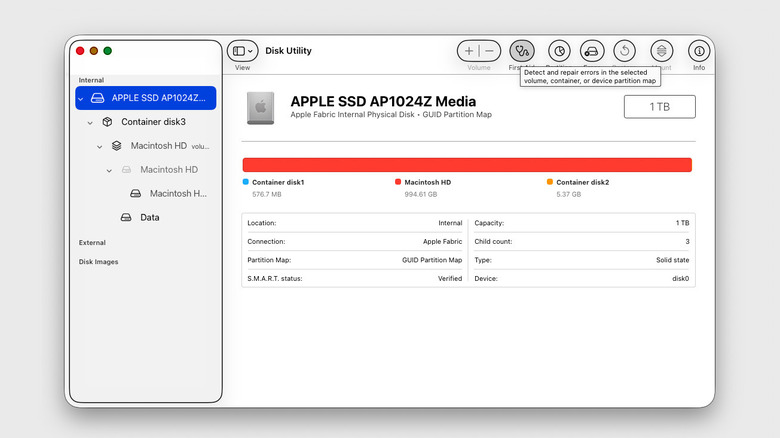
For most people, Disk Utility’s First Aid option is the best place to start. Open Applications > Utilities > Disk Utility (or search for it in Spotlight), then choose View > Show All Devices in the menu bar. Apple recommends running First Aid on your drive’s individual volumes first, then the container and finally the drive itself. Select each one from the sidebar, click First Aid and wait for it to finish. (If you’re checking your Mac’s startup disk, Apple recommends doing it from macOS Recovery.)
First Aid checks the drive’s file system for errors and tries to fix any problems it runs into. If it says everything looks fine, the file system is probably in good shape. Still, know its limits. First Aid mostly checks the file system itself. Despite its name, it doesn’t give the drive a full physical checkup.
For a basic look at the drive’s hardware health, Disk Utility can also show a drive’s basic S.M.A.R.T. (Self-Monitoring, Analysis and Reporting Technology) status. S.M.A.R.T. is a built-in monitoring system that tracks several health indicators reported by the drive. These can include errors, failing areas and info about mechanical wear. A “verified” S.M.A.R.T status doesn’t necessarily mean all is well, but it does mean it hasn’t flagged a serious problem.
You’ll find the S.M.A.R.T. status by selecting the physical drive in Disk Utility and clicking the Info button in the toolbar. Again, you’ll need to select View > Show All Devices for the physical drive (and not just the container and volumes) to appear.
What if you need a deeper dive?
Disk Utility and paid third-party apps like DriveDx have different strengths. Disk Utility’s built-in tools are the place to start if you suspect file-system corruption, or you if you need to perform a wipe before throwing out an old USB drive, but DriveDx is more about determining whether the hardware itself is failing. It goes farther than Apple’s top-level S.M.A.R.T. scans, surfacing more information while incorporating other health data, running SSD diagnostics and monitoring changes over time.
It can be especially useful for external HDDs and SSDs, where Disk Utility might not show you any S.M.A.R.T. data. You probably don’t need DriveDx to maintain a healthy modern MacBook, it’s more of a luxury than a necessity. However, it does support Apple’s internal SSDs if you want a closer look at your drive’s health.