dailynewsnblog
Think of the time you’ll save.
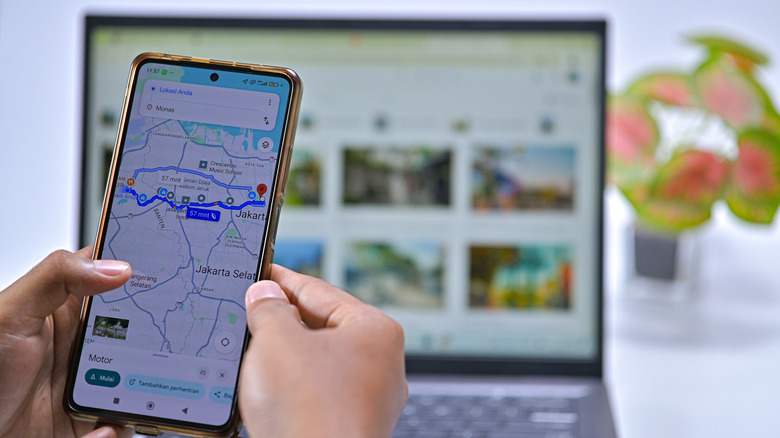
No matter where you navigate with Google Maps, you always return home eventually. Because it’s the destination you travel to most, it makes sense to have quick access to your home address to cut down on wasted time. Thankfully, Google Maps has special shortcuts for your home, as well as other frequently visited locations.
If you’ve recently moved or have never set your home address, take a moment to configure it now. You can do so on the web or mobile app. Before you do this, though, consider the security implications of having your home address stored in your phone. If your device was stolen, or even if someone was able to snoop around for a minute, they could easily check your exact address by opening Google Maps (or other apps where you save this information, like Uber).
To enjoy the conveniences this feature provides without potentially exposing your full address, consider saving your “home” as a nearby public place like a restaurant or grocery store. That way, navigation is close enough that you’ll know how to get home from there.
Set your home address using Google Maps on the web
Open Google Maps in a browser, then click Sign in at the top-right if you’re not already logged in. When you click inside the search box, you should see Home and Work entries at the top, where you can select Edit to change them.
If not, click your profile icon at the top-right and choose Manage your Google Account. On the resulting page, click Personal info on the left sidebar, then scroll down to find and choose Home address. If you don’t already have an address set, enter yours here and Maps will offer autocomplete suggestions.
The Address line 2 button is available if needed, or you can hit Choose on map if pinpointing your desired destination is preferable to typing it. This is also helpful for finding a nearby public place to save instead of your home address. In case you don’t want to keep this information anymore, choose Remove. While you’re here, you might want to also enter or update your Work address. That keeps it easily accessible in Google Maps and provides commute estimates.
Change your home address using the Google Maps app
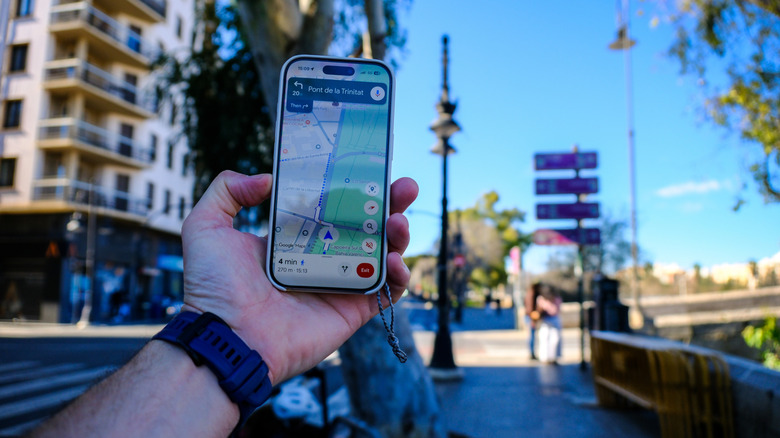
In the Google Maps app on Android or iPhone, tap the You icon on the bottom bar. On the page that appears, choose the list called Labeled on the page that appears. If you don’t see it, tap the More arrow to see all your lists. In the Labeled list, you should see Home and Work entries.
To change either address, tap the three-dot button next to it and select Edit home (or Edit work). Enter your new address using the bar at the top, which should populate as you type. Use Choose on map if, again, you prefer dragging a pin around or if your home location doesn’t map cleanly to an address.
For a bit of fun, try the Change icon action for either of these special addresses. You can tweak them to stand out with options like a treehouse, submarine, or barn. And if you don’t want to use this feature anymore, tap Remove to clear the address.
Labels and contact addresses are great, too
With labels, you assign a custom name to any spot, which you can then search for or use in voice commands for a better Android Auto experience. These are great for frequently visited places. For example, you might use Gym as a friendly name instead of having to say “Navigate to Planet Fitness on Cherry Street” every time. It’s also possible to label places without an address, like GPS coordinates for a specific campsite in a park. Try them for places that are easily confused with others or otherwise clumsy to type.
To label a place from your computer or laptop, click on the location to open its panel on Google Maps, scroll down and click Add a label. On your phone or tablet, scroll left on the row of small icons below the place’s basic information, then chose More > Add label. Labeled places appear with their name and a blue icon on the map. Plus, the Labeled group is cleaner than lists since it doesn’t include photos, review scores, opening hours and other such info. It just displays the name and icon you’ve chosen for each item and the address on file.
Finally, don’t forget that Google Maps will show addresses you have saved for any of your contacts, letting you search for them by name. If this doesn’t work, make sure you have your Google contacts synced with your phone and that the Google Maps app has access to your contacts.