dailynewsnblog
If you want to give a game to a friend or family member this holiday season, gifting a digital game is a great and convenient option. With the Microsoft Store on Xbox, Microsoft Store on Windows, Xbox on PC (including Xbox ROG Ally handhelds), or the Microsoft Store online experience, it’s never been easier to send someone a near-instantaneous gift on Xbox or PC.
To see how easy it is to gift a game on console, you can watch our tutorial video below, or read on for a step-by-step guide.
Gifting Through Console
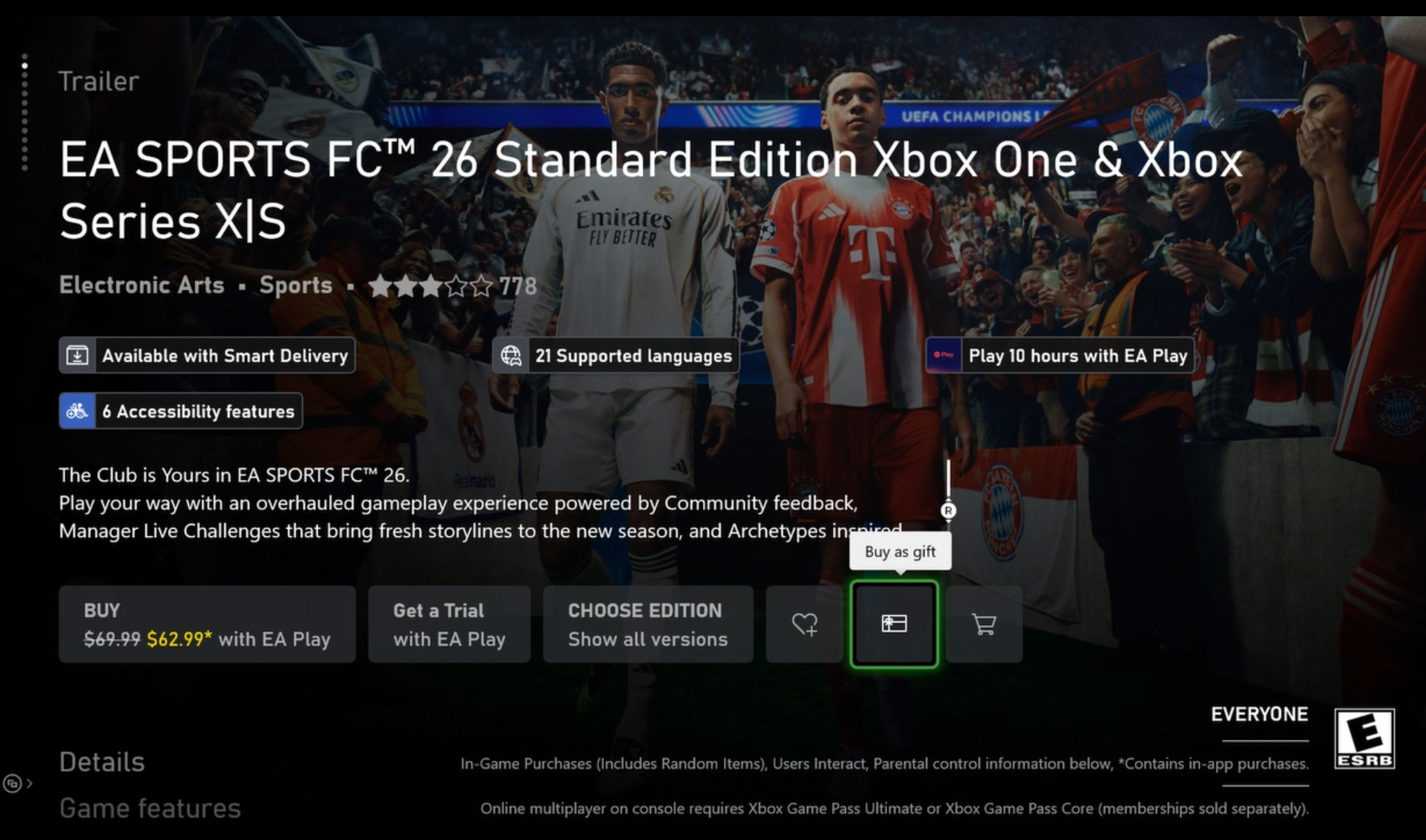
- To send a digital game as a gift on your console just go to the Microsoft Store, find the game you’d like to gift, locate the gift wrap icon, and click on it.
- This will open the “Buy as gift” options, where you can either choose someone from your friends list or type in an email. Note: Make sure the person receiving the gift is in the same country as you.
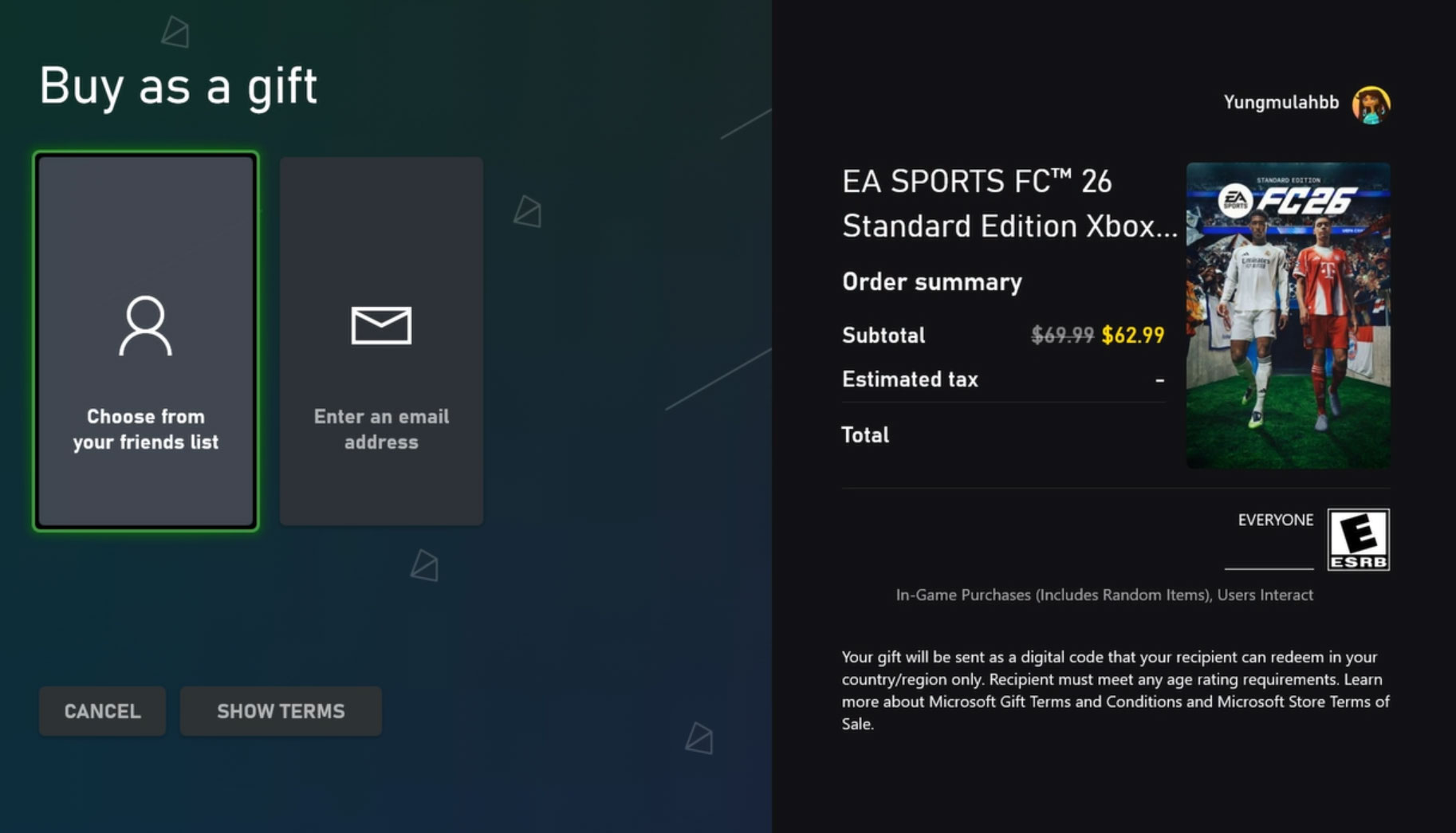
- From here, just choose your payment option and buy as a gift.
- Your friend will receive a message both on their Xbox console and the email associated with their Xbox account. From there they only need to click on “Redeem code” and they are ready to play!
- You can also send add-ons and subscriptions as gifts, such as Xbox Game Pass Ultimate!
Gifting Through the Xbox App on PC (Including ROG Xbox Ally)
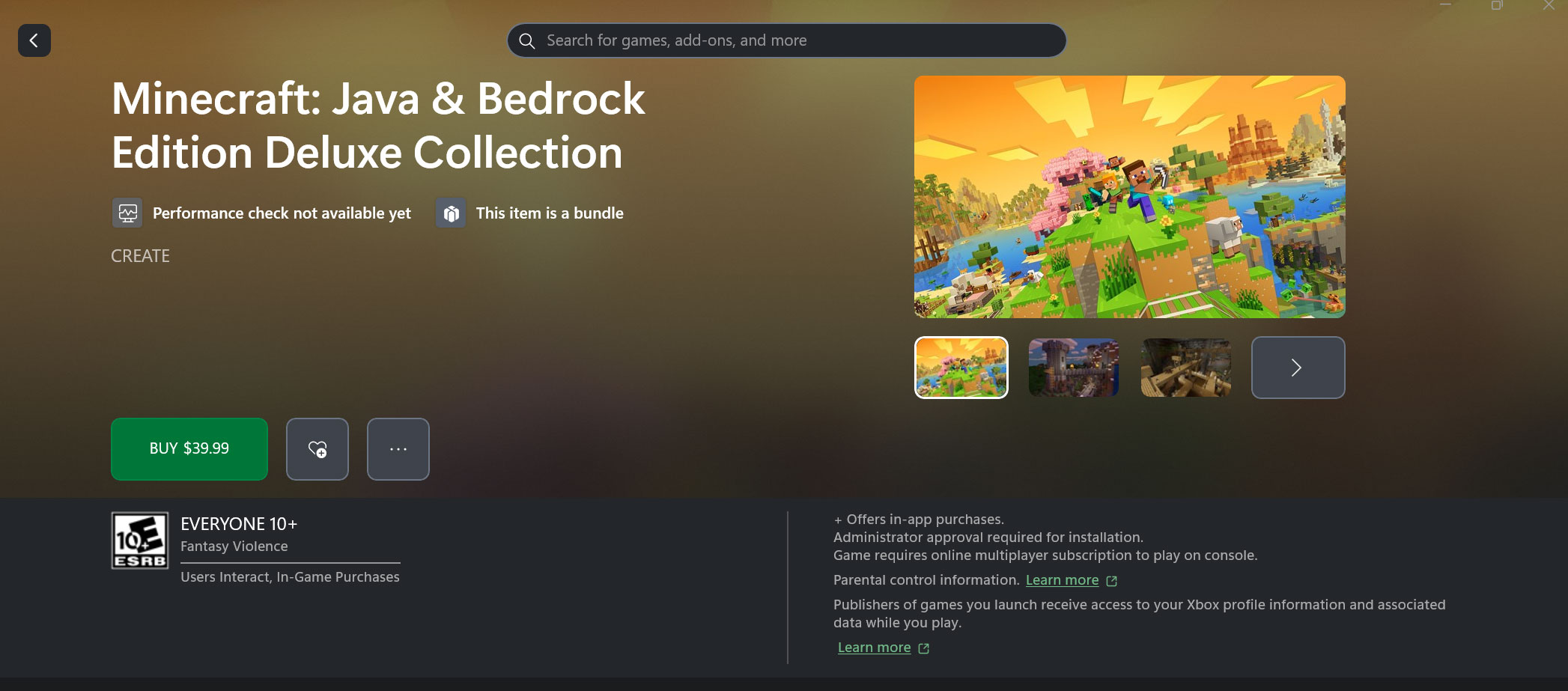
This is the same process as buying a gift on console – simply search for the game you want to send, then hit the “…” button and pick “Buy as Gift” in the dropdown menu. You can choose to send this to an Xbox friend or send to an email address.
If you’re using a ROG Xbox Ally handheld, this process is identical when using the Store tab in the Xbox Full Screen Experience.
Gifting Through Web Browser
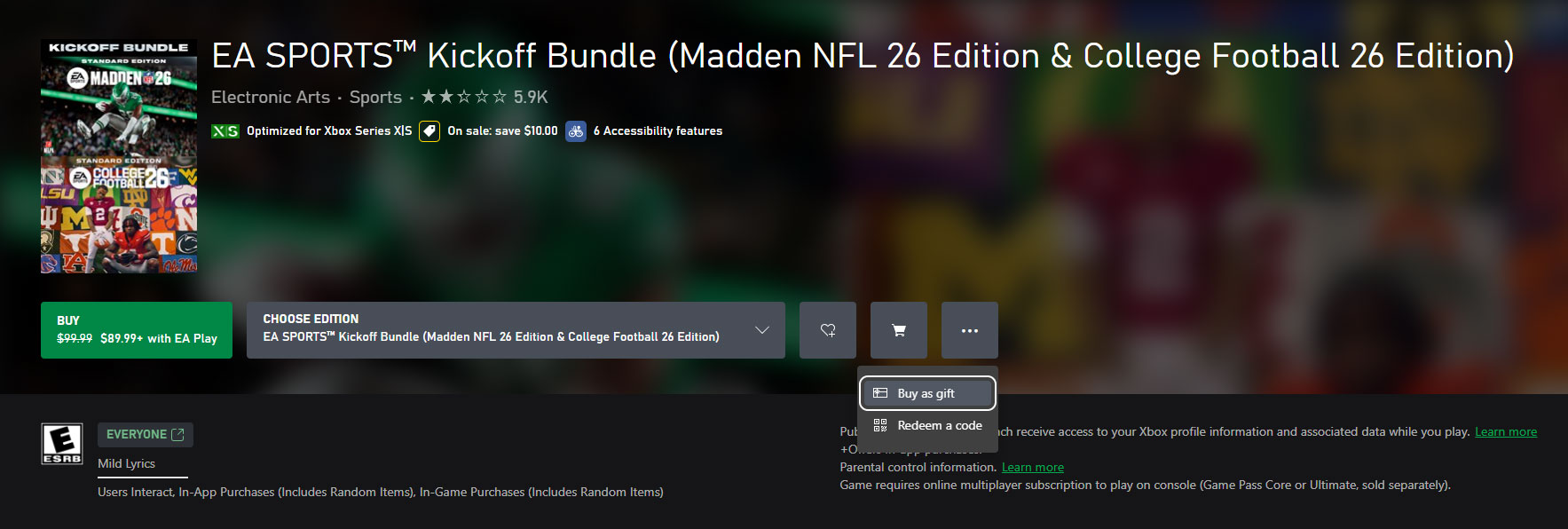
On the web your experience will be quite similar, though you will only have the email option. Visit the Microsoft Store Online, find the game, add-on, or subscription you wish to send as a gift and click on “Buy as a gift,” in the “…” dropdown menu beside the buy button, be it on your desktop or mobile device. After you log in to your Microsoft Account, choose your payment method, and you are ready to go.
Gifting Through the Microsoft Store on Windows
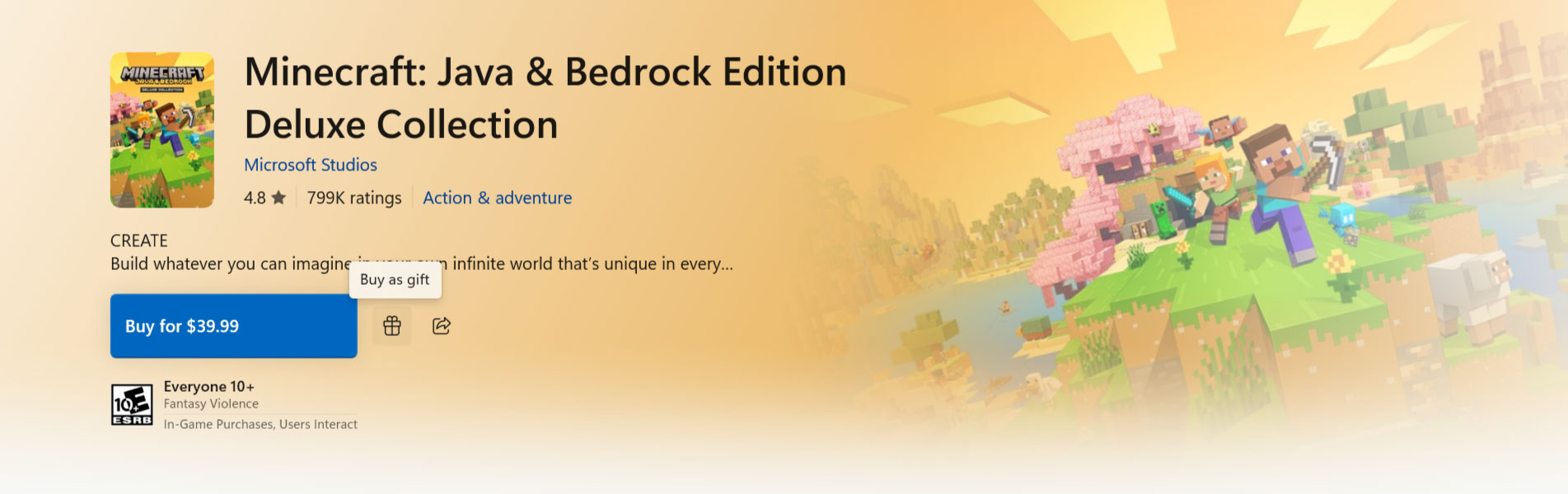
On the Microsoft Store on Windows experience, you will only have the email option. Visit the Microsoft Store on Windows, find the game, add-on, or subscription you wish to send as a gift and click on “Buy as a Gift”, icon to the right of the buy button. After you log in to your Microsoft Account, choose your payment method, and you are ready to go.
For all the details on gifting digital games, visit our support page.
This article has been updated for 2025. The original version of the article was written by Daniel Martins.