dailynewsnblog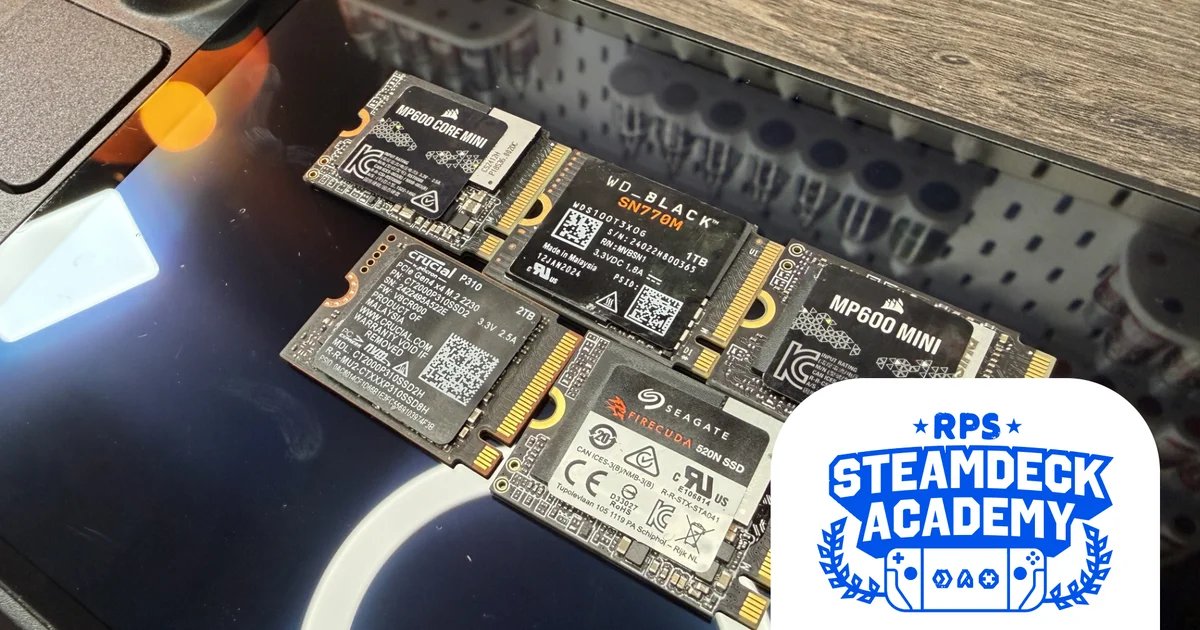
Valve currently have three Steam Deck models on offer: you’ve got the standard 256GB LCD variant (basically no longer in production), the 512GB Steam Deck OLED, and a beasty 1TB edition of the latter. All of them are lovely handheld PCs, but whether you’ve got one of these or you invested earlier in a smaller model, you might still be itching for a little more capacity to make that 32-hour flight to New Zealand a lot more bearable. At this point you have two options: a microSD card, or for storage with more clout, one of the best Steam Deck SSDs.
Even with the ongoing memory shortages, there’s a slew of drives to choose from. So, dear readers, to save you the hassle of going out and buying many, many, many SSDs and potentially ruining your own Steam Deck by repeatedly reinstalling the damn things, I’ve done exactly that for you, and benchmarked a whole host of ’em to find out which ones you should spend your hard-earned cash on. Here’s how they’re tested, and here’s the list of winners.
The best SSDs for the Steam Deck

I can understand why this is Corsair’s newest M.2 2230 portable handheld flagship SSD. It’s seriously good. The Corsair MP600 Mini scores some of the best random 4K figures I’ve seen from this class of drive, which is important when game load times are dependent on those random 4K reads. Files aren’t loaded sequentially when it comes to gaming, so the faster the 4K read time (a processor randomly picking data from different cells on the SSD), theoretically, the faster the load time. Basically, sequential speeds are marketing hype in this arena, maybe outside of downloads.
Still, that quick read time translated nicely to its overall performance in-game, with the MP600 Mini putting in a respectable shift of just 92.41s average load time across all three of my benchmark games. If you ever end up shuffle this over to something more desktop-like, like the new Steam Machine, it’ll handle file transfers quite nicely as well.
As for pricing, right now you’re looking at around £0.18 and $0.18 per GB, and general performance per second is around £1.89 and $1.89, respectively, as well, making it one of the most affordable SSDs on the list, and a big win given current market conditions.
One word of caution: it was the hottest drive on test, that may lead to some throttling later down the line. If it’s peak British summer and your office is 45°c, do take that into consideration when you do go on a download rampage.

Pros:
- Solid value both in the US and UK
- Outstanding random 4K read performance
- Good game load times
Cons:

It’s a real shame that Crucial’s consumer SSD business is being killed off so that owners Micron can focus on (you guessed it) AI data centres. Especially because the Crucial P310 is, relatively, extremely good value for money right now. Micron, for all their artificial dollar-chasing, are the ones that basically design and develop NAND flash, working closely with Phison on its controller tech as it does so. That means cutting-edge hardware was basically a given in every drive they launched. Whereas the Corsair MP600 Mini above is using Micron 176-layer QLC flash, this thing is on 232-layer QLC, which is faster, denser and more power efficient – and it really shows.
Temperatures were no less than 9 degrees cooler in testing, performance was only a few MB/s off on the random 4K performance, and sequentials too, were not far behind. Overall game times were respectable as well, unsurprisingly, pipping almost every other drive to the post on this list.
The big win, however (and weirdly, given the state of things) was pricing. With a super spacious 2TB capacity, the price per GB was just $0.12 and £0.11. That’s almost respectable. Of course, because it is a 2TB drive, and it does cost more than smaller models, performance per second was a fair bit higher at $2.67 and £2.42 per second. But this is still an absolute corker of an SSD, and well worth your time if you’re on the hunt for a 2TB model. We’ll be sad to see it go. Sniff.

Pros:
- Exceptional value for a 2TB model
- Outstanding performance on every level
- Excellent thermals
Cons:

The Seagate FireCuda 520N is a bit of an oddity in terms of where it sits in the market. It’s a fine drive, but not for the reasons you might suspect. One surprise, for example is that the hardware inside is largely identical to the stock SSD found in the Steam Deck OLED.
It has the same Phison E21T controller, the same 176-layer TLC NAND, and, near enough, the same performance as the OLED drives. That’s by no means bad, but if you’re looking at this and already have the 1TB version of Valve’s handheld, you’ll be gaining exactly zero performance for your troubles.
It is, however, remarkably affordable (particularly in the UK) if you want to splurge for that 1TB or even the 2TB edition, and the big win is just how cool this thing is. I tested the 1TB model and despite having twice the capacity of the OLED-stock 512GB SSD, it manages to run colder. In my testing, the 520N capped out at 54°c, just beating the Steam Deck SSD’s 56°c. This is no doubt down to its sequential performance being quite a bit slower than the OG drive; you’ll be glad to know random 4K read performance was only 0.11 MB/s off the mark, and load times were equally tight as a result of that.
On a sidenote, Seagate offers a pretty nifty Rescue Data Service across all its SSDs. So if your house burns down, or gets flooded, rest assured, some kind/obligated soul in the Seagate offices should be able to retrieve your Steam library for you.

Pros:
- Best-in-class temps
- Strong load times
- Exceptional reliability and recovery
Cons:
- Near-identical tech to OLED stock SSDs
- Fast, but not the fastest

SSD availability is a stinker at the minute. There’s just less and less drives landing on retailer shelves as manufacturers pivot to more “profitable” arenas. As a result, prices are not only being driven higher by grandma’s ChatGPT data-harvesting caricature AI infrastructure investments (that’s a mouthful), but availability is becoming an issue, too. Fortunately for us SanDisk are one of the few brands left still committing to the PC gaming arena, and the WD Black SN770M remains available in droves for the time being.
It’s a bit of a jack of all trades, though load times are decent as you’d expect, and random 4K performance is up there (albeit not anywhere near the levels of WD’s top desktop drives, like the WD SN8100). However, the SN770M’s pricing, sequential speeds, and temperatures are on the underwhelming side. SanDisk is using 112-layer TLC NAND, alongside a pretty old controller, which means it’s not quite as efficient as other SSDs on this list. We are expecting new SanDisk M.2 2230 units later this year, but they haven’t quite hit the shelves just yet.
If you’re stuck for choice, and everything else is out of stock in a few months’ time (a genuine possibility), this is the drive to pick.

Pros:
- Easy to find in stock
- Rapid load times
- Good random 4K performance
Cons:
- On the expensive side
- Runs warm

Very much unlike the SN770M, Corsair MP600 Core Mini is forever in and out of stock. Corsair’s budget M.2 2230 SSD is cheap and cheerful, mostly in part as it’s using a slightly older Phison E21T controller (the same one found in that FireCuda 520N), along with Micron’s 176-layer QLC NAND flash. That is the same controller as found in both the FireCuda and Valve’s own Steam Deck OLED SSDs, not to mention the same NAND density – but the shift to QLC brings the price down further, as it’s easier to manufacture.
QLC does have some disadvantages compared to TLC (namely, it’s slower and has less endurance long term), but as we’re working with the Deck’s PCIe 3.0 slot and you’re probably not it to push files back and forth, that’s less of a worry. It doesn’t particularly affect game load times, that’s for sure. What you might notice is that when downloading games or transferring files across it, it does have a habit of chugging a bit once the cache is filled on the drive itself, but that’s about it. Still, at $0.11 and £0.10 per GB, and the lowest price per second figures ($1.14 and £1.08), it’s hard not to include it on this list.

Pros:
- Top value proposition when it’s in stock
- Low operating temps
- Decent load times despite ageing tech
Cons:
- Performance drops in certain conditions
- Mercurial availability
Steam Deck OLED SSDThe best Steam Deck SSD out of the box |
|

Hang on, why am I recommending a stock drive when the whole point of this list is to assess replacements? Here’s the thing: the stock Phison OEM SSD in the Steam Deck OLED (I tested the 512GB model) is actually remarkably good. Load times under testing were second-fastest out of the six SSDs I benchmarked, temperatures were low at 56°c, and random 4K performance was pretty consistent overall.
It isn’t the absolute fastest SSD out there, certainly not if you’re going to swap it into a PC later down the line, but it has one big advantage over the others, and that’s that it comes pre-installed into the Steam Deck, with SteamOS, and Valve have bought these things super cheap on mass, meaning they can pass those savings on to you.
What I mean by that is that if you haven’t yet bought your Steam Deck, and were thinking to upgrade its SSD after the fact, it makes more sense – economically and practically – to just spend extra upfront and secure yourself a 1TB OLED model, thereby retaining all of that performance without having to disassemble your brand new handheld. No matter what, you have to buy a Steam Deck with an SSD pre-installed, and to replace a 512GB SSD with a 1TB after-market model, you’re looking at spending an additional £151 or $175 – versus an extra £90/$100 by just getting the chunkiest stock SSD. See? Having it here makes some sense.

Pros:
- No disassembly required
- Pre-installed with SteamOS
- Surprisingly cost-effective
Cons:
- Limited to 1TB
- Lacks the adventure of getting the screwdriver kit out for some DIY

How we test Steam Deck SSDs
I’ve used a bunch of benchmarks to really get into the weeds on how these drives work. Most important, games-wise, are real-world load times from the Steam Deck itself: I took a stopwatch to Cyberpunk 2077, Red Dead Redemption II, and Dragon Ball Sparking Zero to see how switching SSDs helped or hindered their loading speeds.
I also installed all these drives in a Windows PC to test them with synthetic benchmark tools, including CrystalDiskMark 9.0.1 (one of the same tests that hardware editor James uses to judge desktop SSDs) for transfer speeds and HWMonitor for thermal load tests.
I’m also going to be ranking these drives not only on their synthetic performance, load times, and temperatures (and therefore efficiency), but also weighting them quite heavily against some pricing indexes I’ve divvied up at the time of writing. Because, y’know memory pricing is awful thanks to AI slop generators being a thing. Price per gigabyte and price per second of load time are the metrics in question. You might not see these figures mentioned in every selection above, partly because there’s already enough number-juggling going on already but just know they’re working their magic in the back-end, informing these decisions.
The best SSDs for the Steam Deck: FAQ
Which SSDs are compatible with the Steam Deck?
The M.2 slot inside the Steam Deck (it doesn’t matter if it’s the LCD or the OLED version) is actually a PCIe 3.0 slot. What that means is that its max sequential speeds and performance are capped at around 3.5GB/s, assuming no other bottlenecks. Although yes, that is an ageing standard that first debuted way back in late 2015, it is still remarkably nippy and compact, and perfectly adequate for what the Steam Deck needs to do.
The good news is that any PCIe 4.0 or PCIe 5.0 drive is backwards compatible by default; they’ll just be capped at those PCIe 3.0 speeds. Valve are actually taking advantage of this as well. Their base OLED models are equipped with the beautifully named Phison ESMP512GHV7C3-E21TS SSD, which, although it is an OEM drive, is a PCIe 4.0 model. This is likely a limitation in place because of the Steam Deck’s limited cooling capacity; keeping modern drives on PCIe 3.0 ensures you still get snappy load times, without the drives getting too hot during heavy game installs and the like. Very clever, Valve, very clever.
The only other thing to bear in mind is the form factor. The Steam Deck requires an M.2 2230 drive. These are 22mm wide and 30mm long. If you have an M.2 2280 drive (as often found in most modern-day gaming PCs), it won’t fit as it’s 80mm long. 2230, 2280, you get the idea.
Is it easy to replace a Steam Deck’s SSD?
Yep. Super easy, as long as you’re careful and you pay attention to what you’re doing. RPS isn’t liable if you mess up (sorry, friend). Either way, I highly recommend you check out James’ Steam Deck SSD installation guide. But effectively, what you’ll need to do is power down your Steam Deck. Hold the Volume + button, and press the power switch once. Keep holding that until you enter the BIOS. Then choose setup, then power options, and enable battery storage mode. This disconnects the battery from the motherboard (you’ll need to plug in your Steam Deck to a charging cable to power on again after you’re finished).
At that point, flip the Steam Deck over, and remove all the screws on the back; these are simple crosshead screws on the LCD originals, and Torx screws on the Steam Deck OLED, so make sure you’ve prepped the right screwdriver. Carefully place them on your workbench or desk. Then use a plastic guitar pick or something similar, and slide it around the edge of the Steam Deck case from the controller to gently loosen the plastic clips.
Once the clips are open and the rear panel is freed, you can then disconnect the right controller’s ribbon cable and, on the OLED edition, carefully remove the adhesive holding it to the back of the motherboard shield. Remove the motherboard shield, and you’ll spot the tiny M.2 SSD in its protective heatshield sleeve below. Then it’s simply a case of removing that last screw securing it down, sliding it out of its shield, popping the new SSD in, and reversing the entire process. Simple. Side note: You can and probably should remove the battery cable as well. If it’s too tough or brittle, I’d recommend leaving it alone and just being extra-extra-careful with the SSD replacement.
How do I reinstall SteamOS onto my Steam Deck’s SSD?
There’s a few ways you can do this, depending on what hardware or PCs you have access to. By far the easiest way is if you’re running Linux and have a motherboard with a spare M.2 slot.
With that, simply install your old Steam Deck SSD into your motherboard, head to Disks, select the drive, click the three dots on the top right, and select “Create Disk Image”. Save that to your desktop and then shut down the PC. Remove the old SSD from your rig, place the new one in, then power on, go back into Disks, select the drive, the same three dots, and hit “Restore Disk Image”, making sure to select the image you saved to the desktop earlier. This will copy your entire SteamOS install, login details, settings and your games onto your new drive in a few minutes. A few things to note: it will only work if you’re going from a smaller SSD to a larger one (or one that’s the same size), and you can only do this on Linux, as Windows can’t read the SteamOS file system. Then it’s simply a case of installing that new SSD in your Steam Deck. Powering on, and you’re good to go.
Alternatively, if you want a fresh install of SteamOS (or stick with Windows/Mac), Valve has an extensive install guide you can find here. That will require you to have either an 8GB USB-C stick or a standard USB-A stick with a USB-C (male) to USB-A (female) adapter. You’ll also need to use something like the Rufus utility (for Windows) or Balena Etcher (for Mac or Linux) to write the ISO or install file to the drive.