dailynewsnblog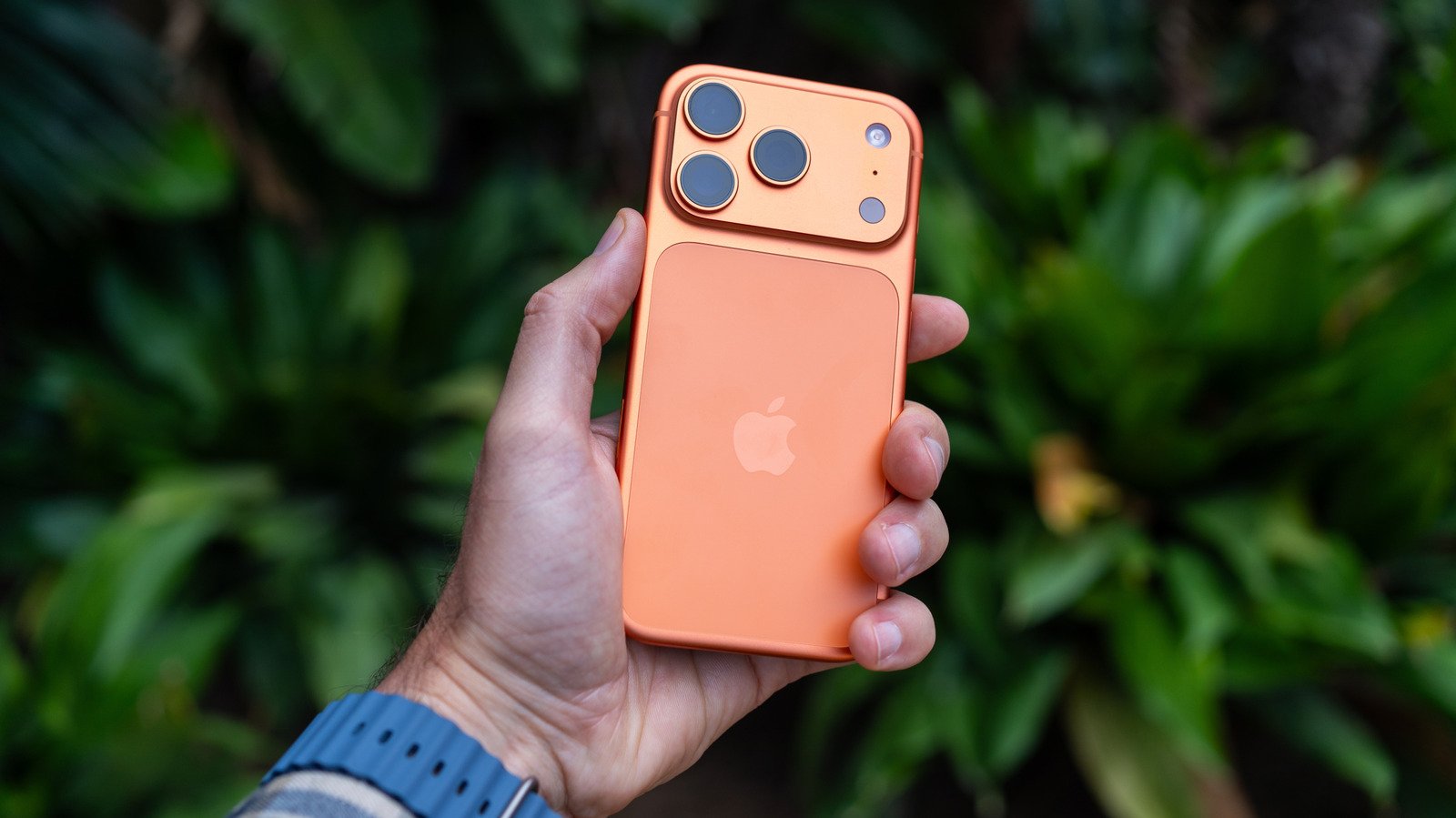
Live Text makes it easy to interact with text you see anywhere by pointing your iPhone’s camera at it.
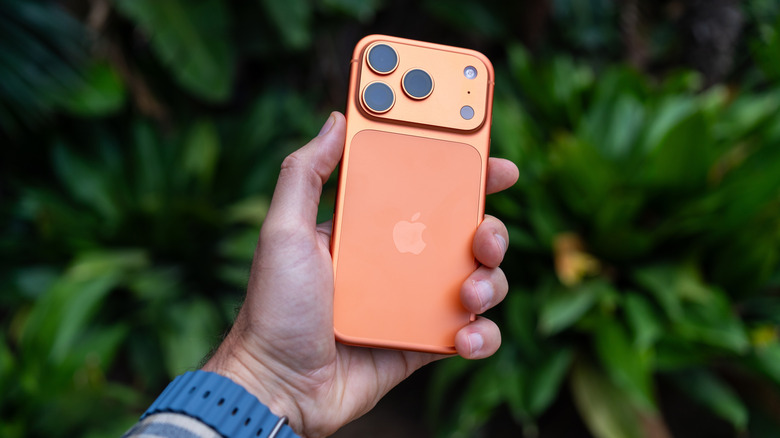
A feature called Live Text leverages your iPhone’s camera to instantly interact with text you point at. It’s available on iPhones back to the XS line running iOS 15 and later. When viewing a website, sign, poster, flyer or nearly else in your camera frame, you can copy or share it, look up information or even translate.
It’s similar to the Visual Intelligence feature, but doesn’t require an iPhone compatible with Apple Intelligence and is limited to interacting with text. All you need to do is hold your phone up, tap the Live Text button on-screen and choose the option you want.
This feature is especially useful for travelers, but there are many ways to use it in everyday life, such as:
- Capturing information about an upcoming event you see on a flyer.
- Sharing the contents of a written note with colleagues instead of taking a screenshot.
- Looking up a website or sending an email without having to input the address.
- Contacting a phone number posted on a sign.
- Converting currencies.
- And much more!
Using Live Text is simple
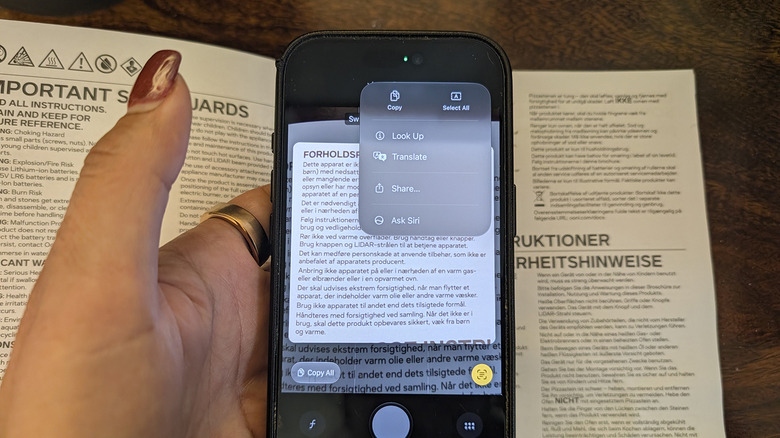
To use Live Text with a compatible iPhone like the new iPhone 18 Pro, open the Camera app, position the desired text in the viewfinder and wait for a yellow frame to appear around the text. Once you see that, tap the tiny grid icon (three lines with four corners around it) at the bottom-right. Choose an option from the menu, like Translate or Copy, or use the grab points to capture the portion of text you want (like a website address). You can also choose to Select All.
You have tons of options to work with the selected text. A basic method is to copy and paste the contents as text into apps like Messages, Notes or Mail. Try Share for quicker sending than copy and paste can provide, or for using other methods like AirDrop. You can also Look Up a web address or information you want to research, or Translate text in another language.
Some content pulls up a quick action at the bottom of the screen for making a call, visiting a website, starting an email, converting currencies and other common actions. If you don’t want to use it, you can turn Live Text off by going to Settings > Camera and turning off Show Detected Text.
Live Text vs. Visual Intelligence
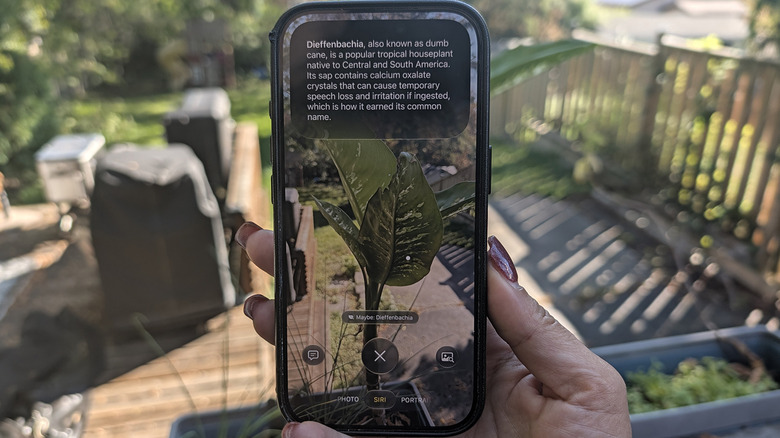
Apple introduced Visual Intelligence with iOS 18.1 as part of Apple Intelligence back in September 2024. Apple’s take on Google Lens works a bit differently than Live Text, going beyond text to analyze much more. It requires an iPhone compatible with Apple Intelligence (iPhone 15 Pro, 15 Pro Max, or newer).
There are a few ways to activate it. First, make sure you have Siri turned on (Settings > Siri). Long-press the Camera Control button (if present), customize the Action button to call up Visual Intelligence (Settings > Action Button > Visual Intelligence) or select Siri from the Camera app if you have Siri AI enabled. You can also access it from the Lock Screen or Control Center if you add the icon there (pull down from the top-right, press and hold any blank space to open the edit menu, select Add a Control and choose Visual Intelligence).
Once activated, hold the phone up to something, like a plant or a landmark. From there, you’re able to get more context from Siri, run a Google Image Search or use ChatGPT to look up more information. You can point the phone to a business sign to get information like hours of operation, menu, reviews or even a reservation window.
Additionally, Visual Intelligence will interact with text just like Live Text. Once activated, you can translate, read aloud or summarize as well as tap a phone number, email address, or website to open it in a relevant window. Live Text happens organically when the phone detects text in the frame of the Camera app, while Visual Intelligence expands on this to provide even more information in a specific camera mode.