dailynewsnblog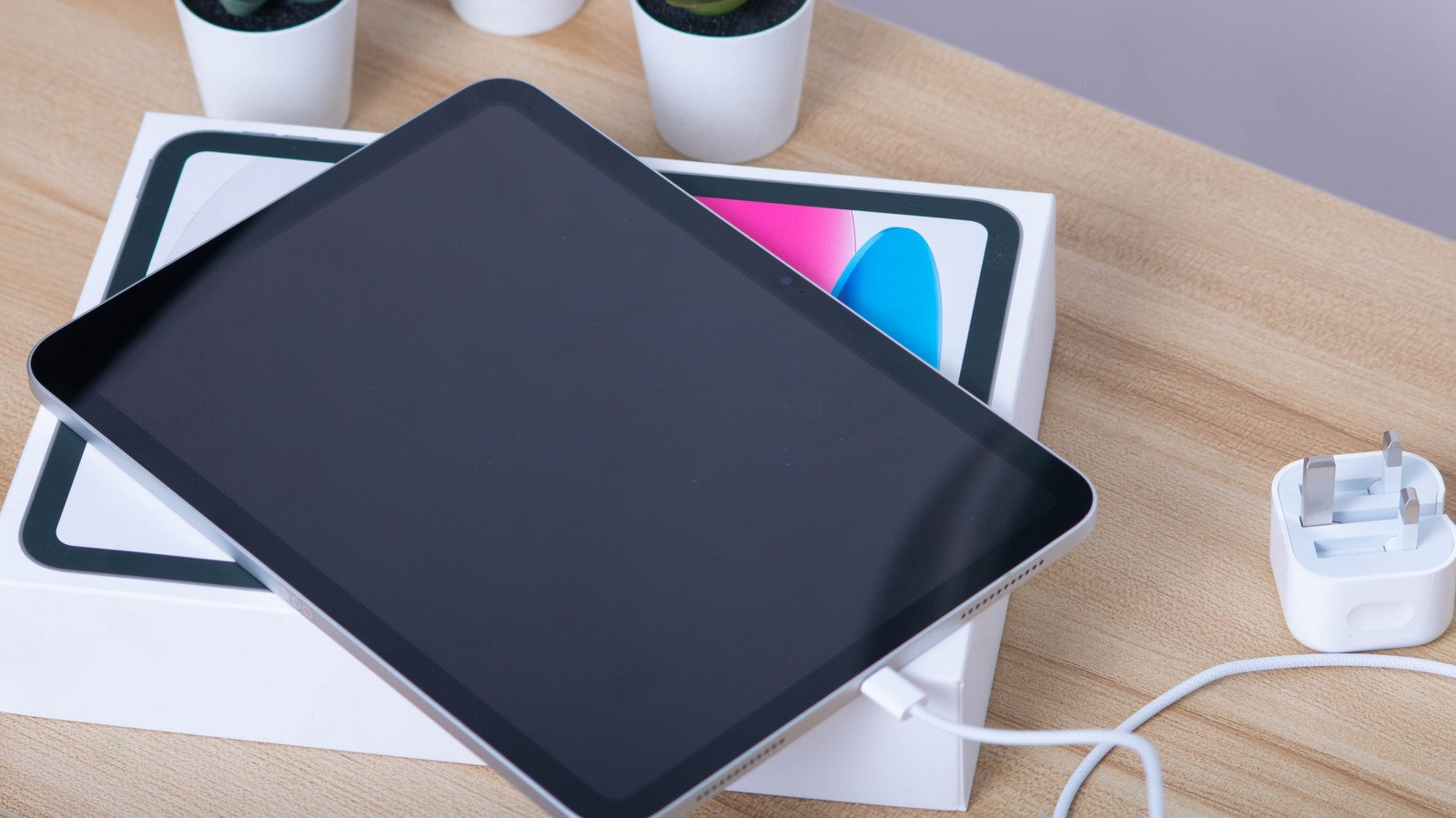
If your iPad refuses to charge, it’s likely an issue with the cable or charging block.

Having your iPad refuse to charge is a frustrating sight, whether it’s fully drained after a late-night YouTube binge or you’re topping it off before class. Even if you own one of the best iPad models, charging problems can easily crop up. But what’s causing these issues, and how can you solve them?
If your iPad refuses to charge out of nowhere or starts charging more slowly than usual, you’re looking at either a problem with the cable and charger, or a potentially more serious underlying hardware fault. While a damaged or underpowered charger is often the primary culprit for an iPad that won’t charge, there could also be an issue with your tablet’s charging port. We’ll guide you through why your iPad might have suddenly stopped charging while also providing tips on how to power it up again.
Why has my iPad stopped charging all of a sudden?

First, don’t panic: an iPad not charging doesn’t necessarily mean it’s bricked. The main culprit behind charging woes could be as simple as a faulty charger or cable. When possible, it’s best to use the official first-party charger that came with your iPad or one of the best fast chargers. That way, you know it’s getting enough power.
It’s not a great idea to use cheap third-party chargers, as they may be unreliable or unsafe due to poor quality control. Also, the iPad needs a heavier-duty charger than an iPhone, given its large battery. It’s possible that a weak charger is connected properly, but doesn’t send enough flow to get your tablet going. Ideally, you want a charger that provides at least 10W, not that old Kindle charging block that’s been buried in a drawer for years. Using a high-quality cable that meets the fast charging standards of your charging block is important, too.
Thus, when you encounter iPad charging problems, switch between multiple cables and adapters to rule out peripheral faults. If certain cables and chargers work but others don’t, that’s a sign the charging accessory is bad, not your iPad. Try various wall outlets too, just to make sure you’ve ruled everything out.
In the unlikely instance that you’ve left your iPad to gather dust for weeks or even months, its battery is likely fully discharged. Most devices are prone to charging issues if they’ve been left completely drained for extended periods of time. So if you’ve neglected your iPad for months, let it sit on the charger for a good while, as it could take a while before it’ll turn back on (even with an ultra-fast charger).
Extreme temperatures can also wreak havoc with your iPad’s battery. Apple advises that you refrain from charging an iPad in direct sunlight, while overly cold conditions should also be avoided. The company states temperatures between 32°F to 95°F are optimal for safe charging conditions. Veer outside these temps, and iPadOS may start to slow or completely stop charging to protect your iPad’s lithium-ion battery.
How to tell if your iPad’s charging port is damaged
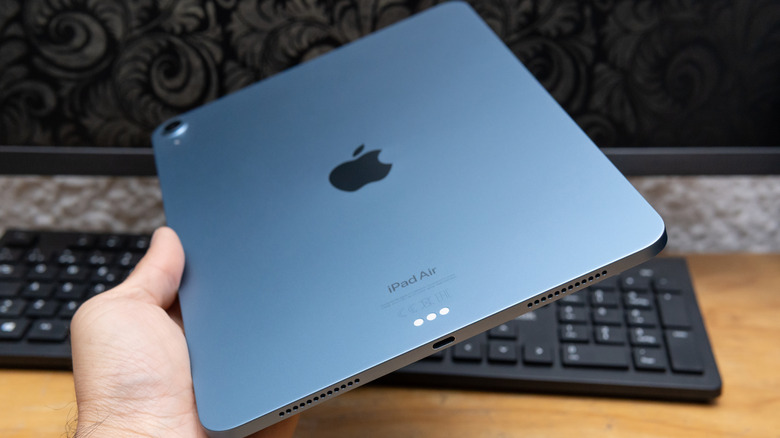
The inverse of our earlier test also reveals important info: if you have chargers that work fine with other devices but refuse to juice up your iPad, your tablet’s port is likely damaged. Another signal of port damage or blockage is the charging icon on your iPad’s screen fluctuating on and off.
You should carefully examine your tablet’s charging port. The simplest way to do this is using the flashlight on your phone to peek inside. If you can see scratched or bent pins, or if there’s any sign of discoloration, the port is likely damaged. At this point, you should contact Apple Support to see what your repair options are. Provided your iPad is still in its warranty period, Apple may complete the repairs for free, as long as it deems the problem was from a manufacturing defect and not one caused by accidental damage. If you have AppleCare protection, port damage should be covered (with a deductible).
Problems with your iPad’s charging port may not be as severe as physical scrapes and scratches; charging problems can often happen from dirt buildup. If you see lint or dust packed into your iPad’s port, this may interfere with the charging cable connection. To safely remove any grime that’s formed inside the port, use the soft bristles of a clean brush. Avoid small metallic objects like paperclips, as they can scratch the port internals. Don’t use cotton swabs either, as they can leave fibers inside the port.
How to reset an iPad that won’t charge
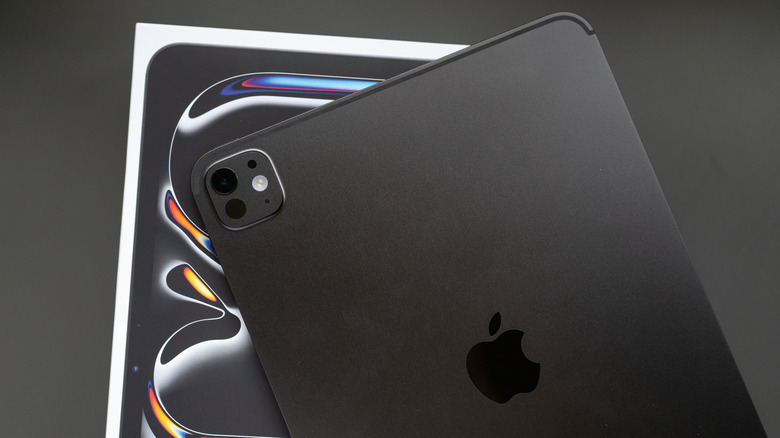
Once you’re confident that neither your iPad’s charging port nor the cable/charge are the culprits, it’s time to force your tablet into a hard reset. This won’t delete any data; it’s a forced restart akin to pulling the plug on a desktop PC. The process differs slightly depending on the model.
For those with modern iPads that lack a Home button, first press and swiftly release the Volume Up button (the one closer to the Power button), then press and release Volume Down. After this, hold the Power button (located at the top-right with the port at the bottom and the screen facing you). Continue to hold this until the Apple logo appears on your iPad’s screen, which can sometimes take a few seconds.
If your iPad does have a Home button, the process is a little simpler. Just hold the Power and Home buttons together until the Apple logo shows up to complete a force restart. Once your iPad boots normally again, hopefully it will charge as normal. If not, it’s time to get in touch with Apple.