dailynewsnblog
You can even use your Roku like a PC, if you have the right phone.
One of the best things about owning a Roku TV or streaming box is the ability to easily integrate it with the rest of your tech setup. While having streaming apps a remote-click away is handy, so is being able to control the TV from a smart speaker or smartphone. Best of all, you can quickly mirror your phone’s screen to the TV. Screen mirroring your Android phone to a Roku device can be a convenient way to enjoy your local media or show friends your vacation photos on the big screen. It can also help you give slide presentations or even take part in a video conference.
Roku makes the process of connecting your Android phone an easy one, assuming both devices support the Miracast protocol. Along with the ability to use your own headphones, it’s one of the features that makes Roku compelling for those who haven’t dumped it yet on account of a pending acquisition by Fox. While very few Roku devices appear to lack support for screen mirroring, certain Android devices may not support Miracast natively. The most notable exceptions are Google Pixels, which use the Google Cast and DIAL protocols but do not support Miracast. You may still be able to cast individual apps, such as YouTube or Netflix, which support DIAL.
Below, we’ll cover how to mirror your screen to a Roku from the most popular Android devices that support casting — namely, Samsung Galaxy phones and tablets. But if you have a different brand, you’ll find similar capabilities under different names if you poke around in your settings. For example, LG phones have Screen Share, and on OnePlus devices, you’ll find Screen Projection. If you have a Pixel, however, you’re out of luck. Google’s phones do not support the Miracast protocol needed to mirror to Roku.
We’ll also discuss how to solve minor issues that can occur when establishing a casting connection, and how to expand functionality even further for devices that support a full desktop mode with an external display on Android.
Mirror your screen or cast individual apps from Android to Roku
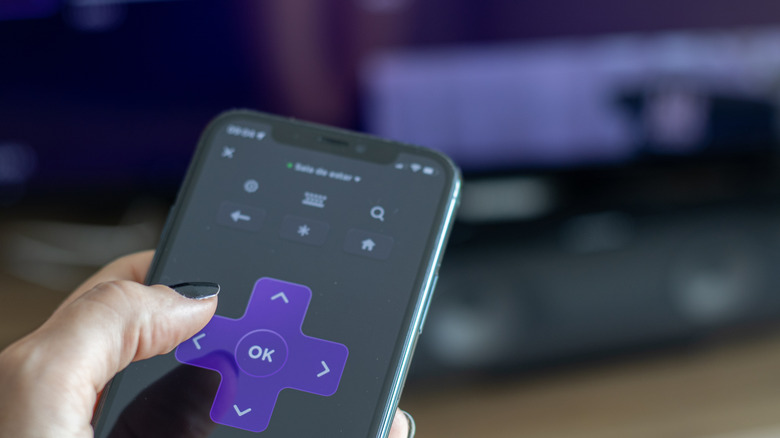
Head to the settings menu on your Roku, which can be accessed from the text menu on the left side of the home screen. Scroll down and select System > Screen mirroring > Screen mirroring mode. Choose either Always Allow or Prompt, but only choose the former if your Wi-Fi network is private and secure. Finally, make sure that your phone is on the same network as the Roku you’re mirroring to.
If you’re using a Samsung Galaxy device, you can now mirror your screen with just a couple of swipes (for other brands, consult your device’s documentation). Swipe down from the top right of your phone’s screen to open the quick settings panel, then select Smart View. Alternatively, tap Settings > Connected Devices > Smart View. Once you’re in the Smart View interface, it will begin to scan for nearby wireless displays. Select your Roku device when its name shows up onscreen, then tap Start Now if prompted for confirmation. Other brands should have a similar mirroring option in their pull-down menus.
While mirroring, a Smart View pill will hover on the screen of your phone, and tapping it will surface a context menu. If you’re just mirroring media from a single app, say, Netflix, and don’t want other apps or notifications to show up on the big screen, tap Cast Netflix Only. This lets you browse your phone and receive notifications as usual while only mirroring your app of choice. If the video is letterboxed on your TV screen, tap the Smart View pill again, and tap Change Aspect Ratio.
If you don’t hear audio from a video or other source and have made sure the volume is up on both devices, swipe into quick settings and tap Media Output inside of the now-playing media pill, then ensure your Roku is selected.
Roku allows Samsung Galaxy owners to use wireless DeX for a full desktop experience
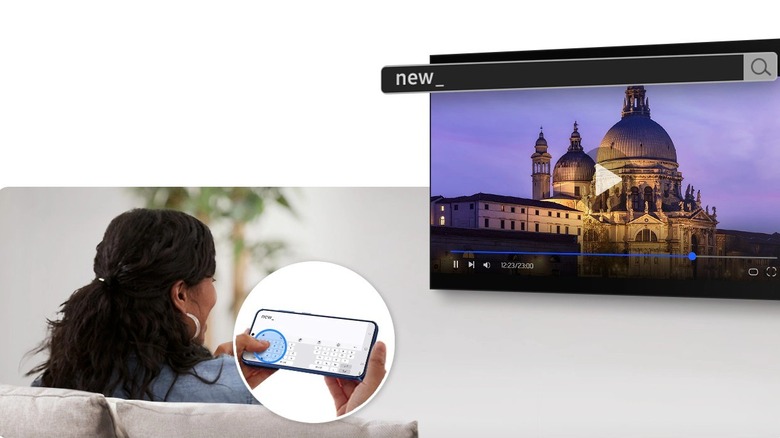
Samsung Galaxy smartphones have access to a user-favorite feature called DeX, which turns Android into a Windows-like desktop experience. The phone becomes a touchpad and keyboard for the interface (look for a corner square icon to show up when DeX is active), or you can connect a Bluetooth mouse and keyboard. (Something similar may be coming to Google’s Android skins in the nebulous future.) Normally, DeX activates when you plug the phone into an external display, but it can also be triggered by connecting to a wireless display, including a Roku.
To cast your screen to a Roku in DeX mode, open quick settings by swiping down from the top right of your screen and tapping the Wireless DeX toggle. Alternatively, go to Settings > Connected Devices > Samsung DeX > Connect Wirelessly. The phone will scan for nearby displays, which can take a few moments. Once your Roku device shows up, tap on it, then tap Start Now, and DeX will launch wirelessly on the TV.
In our testing, we’ve found that there can be considerable lag while using DeX wirelessly. If you’re experiencing sluggishness, setting your TV’s picture mode to gaming can sometimes make things a bit more responsive.