dailynewsnblog
You’re just a few taps away.

YouTube Music doesn’t offer the best sound quality, even for Premium subscribers. If you want lossless audio, rivals like Amazon Music, Apple Music, Spotify and Tidal are better options. But it still has its advantages, including unofficial uploads, live performances, remixes and rare tracks. Regardless of your reasons, you can make YouTube Music sound better than its default settings. Here’s how.
By default, YouTube Music uses the Normal bitrate setting, which maxes out at 128 kbps. That’s fine for conserving data, but not for a high-quality listening experience. The service’s highest available setting is 256 kbps, which can sound noticeably cleaner, especially with good headphones or speakers. The tradeoff is that it uses more data, so it makes the most sense with a strong connection and a decent data plan.
The big catch? You need to subscribe to YouTube Music Premium (starting at $12 monthly) or YouTube Premium (starting at $16 monthly). Otherwise, you’re capped out at the Normal bitrate.
How to change YouTube Music’s streaming quality
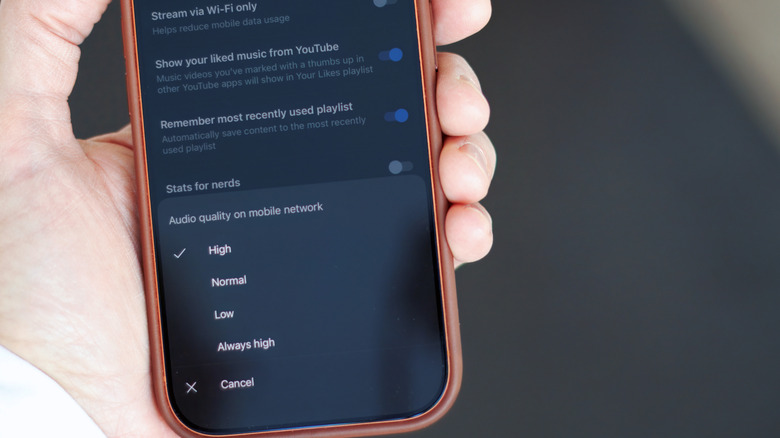
The streaming settings are in slightly different places on Android and iOS. Beyond that, the options are identical.
In the YouTube Music app:
- Tap your profile picture and go to Settings.
- Open the playback menu (Data saving on Android, Playback & restrictions on iPhone).
- Change Audio quality on mobile network and Audio quality on Wi-Fi to High or Always High. (High uses 256 kbps when your connection is strong enough, while Always High tries to maintain that quality even on weaker connections.)
How to change YouTube Music’s download quality
While you’re at it, you can also change the bitrate for downloaded music:
- Tap your profile picture and go to Settings > Download & storage > Audio quality.
- Choose High. As with the streaming settings, that gives you the cleaner 256 kbps.
There’s one caveat for downloaded music: It doesn’t automatically upgrade the tracks you’ve already downloaded. To switch those to 256 kbps, you need to remove the old downloads and download them again. (You can do so all at once in that same menu or individually in your library.)