dailynewsnblog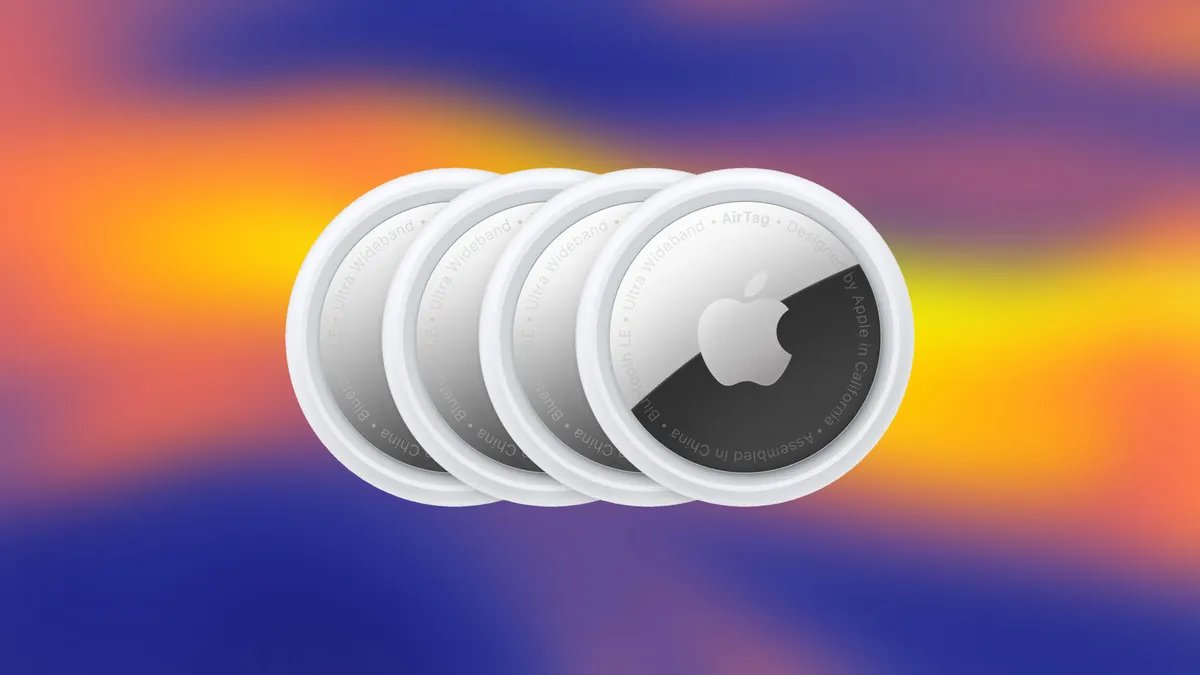
If you’re planning to travel, an AirTag is great for keeping track of your luggage. But if you only need an AirTag for a week-long trip, it might not make sense to go out of your way and buy one — especially if a friend or family member has an extra AirTag handy.
Apple released AirTags in 2021 to help you keep track of valuable items, like your keys, when your couch eats them. Back then, AirTags could only be attached to one user at a time. You couldn’t lend someone an AirTag, and if you did, they’d be notified that they were traveling with an unidentified AirTag.
That changed with iOS 17, when Apple introduced the ability to share AirTags with up to five people. Here’s how to do it.
How to share AirTags
1. Open the Find My app.
2. Tap Items across the bottom of your screen.
3. Tap the AirTag you want to share with others.
4. Tap Add Person under Share AirTag.
Your iPhone will show you a prompt that says once you’ve shared an AirTag, the people you’ve shared it with will be able to locate it, and they won’t receive unidentified tracking notifications. Tap Continue to choose who you’ll share your AirTag with.
Once you’ve shared the AirTag, the other person will receive a notification to add it. All they need to do is tap the notification’s Add button, which adds the tag to their Find My app.
If you’re going through this process and receive a notification for a shared AirTag you don’t recognize, you can tap Don’t Add.
How to stop sharing AirTags
After a family member or friend returns your AirTag, you can stop sharing it with them. Here’s how.
1. Open the Find My app.
2. Tap Items across the bottom of your screen.
3. Tap the AirTag you want to stop sharing.
4. Tap the name of the person with whom you want to stop sharing.
5. Tap Remove.
Your iPhone will show another prompt saying that the person won’t be able to locate your item, and they will receive unidentified tracking notifications. Tap Stop Sharing, and you’re set.
For more iOS news, here’s everything you need to know about the upcoming iOS 27. Or test out Siri AI now by signing up for the developer beta.