dailynewsnblog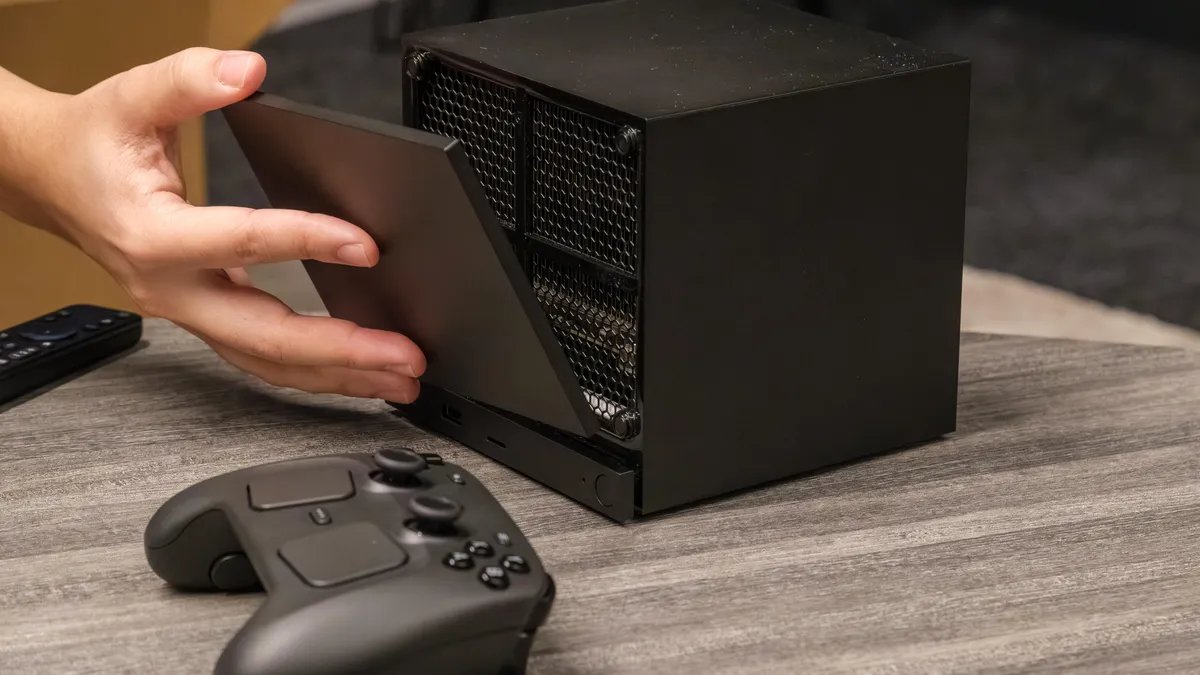
The Steam Machine has landed, offering PC gamers a console-like experience for the living room and giving them access to their Steam library and many other PC games beyond that. RAMageddon couldn’t leave a good thing alone, though, so the Steam Machine is pricier than we expected, with a starting price of $1,049.
It’s enough that it made me wonder how hard it’d be to build a Steam Machine of my own. With some compatible hardware handy, I set out to see if I could install SteamOS on a desktop I already have for my very own “free” Steam Machine-like experience. There were a few bumps along the road and at least one perilous pitfall. Here’s how to do it.
How to get started
Valve has instructions on installing SteamOS and even provides the operating system image file you’ll need. The instructions largely focus on existing handheld devices like the Steam Deck, Legion Go family and Asus ROG Ally family. Devices with discrete AMD GPUs are listed as supported in Beta. For now, you’ll probably want to give this a try only if you meet those requirements. Valve is working with Nvidia to support its graphics cards, but the job isn’t done yet.
CPUs are a different story. My system has a 12th-gen Intel Core processor, which works with SteamOS. Valve doesn’t mention any other specific hardware requirements, but various forum threads (like this on Tom’s Hardware) note that an NVMe solid-state drive is also required. Running the installer, I noticed it specifically looked for NVMe SSDs, so that appears true.
You can create a bootable USB drive to run SteamOS.
Beyond those hardware requirements, you’ll also need an 8GB (or more) USB drive to use for installation media. Using my desktop PC with Windows 11, I downloaded Valve’s SteamOS recovery image and created a bootable USB drive using Rufus. Valve recommends using Balena Etcher to create the recovery drive if you’re on MacOS or Linux.
Before you proceed, protect your data
The SteamOS installer doesn’t appear to have any convenient method to select a specific drive in your system for the new OS. My soon-to-be Steam PC has several drives holding important files and my Windows installation. During the setup process, I came just a click away from likely overwriting all of those drives for a clean installation of SteamOS.
Depending on your donor computer, that might be perfectly fine. It wasn’t for me. Without an obvious tool in the installer software to single out a specific drive, I did it manually by physically removing every drive except the one I wanted to use for SteamOS. You’ll want to do the same if you’re trying to keep your data or set up a dual-boot arrangement. If you’ve built a new desktop with blank drives and are installing SteamOS as the sole operating system, then you don’t have to worry about this.
How to install SteamOS with the USB drive
For a new device install, you’ll want a clean SSD.
Valve’s instructions say to “Select the Re-image Device option” at this point, but that’s not actually one of the options. Since we’re installing SteamOS fresh on a new device, we want the “Wipe Device & Install SteamOS” option. Remember, this is going to wipe the system, so if you didn’t remove any drives with data you want to keep, you shouldn’t proceed. There is at least a helpful warning.
The warning before you delete all your drive’s data.
Once you proceed with the wipe and install, the software will launch a console and go through several steps and should then prompt you to reboot the system. In my case, it ran through its process once and closed the console itself with no prompt or clear error message, having not installed SteamOS. I simply ran it again, and this time it completed the install and prompted me to reboot.
Look for the reboot prompt once SteamOS is installed.
SteamOS is up and running
You’ll need a keyboard and mouse or a game controller to move on.
Once the system boots into SteamOS, there are a couple more steps before you’re off to the races. SteamOS will prompt you to connect a game controller or keyboard and mouse. Since I was using a desktop with a keyboard and mouse already installed, I went that way. Next, you’ll select your language and time zone, then connect to your Wi-Fi. SteamOS will then try to update and reboot.
Almost done. Upon reboot, you’ll adjust the size of the image in case your TV, monitor or, like in my case, projector is cropping the source signal. You’ll also choose your audio output. Then you can finally log into Steam.
A Steam Controller is also an option.
SteamOS will be in what’s essentially Big Picture Mode by default, offering large tiles and easy controller navigation. You can get a desktop-like interface as well, though SteamOS will need to reboot into that mode. From there, you can install and run games like normal.
Why SteamOS?
SteamOS can be installed on hardware you might already have. It’s not terribly hard to do. Is there a good reason to do so? Actually, yes.
PC gaming on a bigger screen.
I’ve been perfectly happy with my PC running Windows 11 (though I was even happier running Windows 10 until this year). It has plenty of resources to power the OS and run games smoothly without issue. Windows can be a pest sometimes, though, and I can understand anyone who never wants to experience its pop-up ads, forceful feature additions or data collection practices. I can also understand that anyone building a new system might not want to pay for a Windows license, especially given the other annoyances. In that case, opting for SteamOS is an obvious alternative.
There’s also the weight of Windows to consider. I said my system could handle Windows and heavy gaming, but that doesn’t mean it wouldn’t be better off without the weight of Windows.
Easy navigation of your game library on Steam is a definite plus.
I recently explored the ways my computer was CPU-bound, watching as the upgrade from a Radeon RX 7900 XT to an Nvidia RTX 5080 offered no improvements to performance running Shadow of the Tomb Raider at 1080p and Highest settings. Since my computer was CPU-bound in that scenario, anything that lightened the CPU’s load could prove beneficial for performance. Sure enough, running Shadow of the Tomb Raider in SteamOS with the same settings, I saw framerates pop up from 208 frames per second on average to 219fps.
That’s a modest improvement, but an improvement nonetheless. There’s no guarantee of getting better performance across the board, though. Plenty of games won’t be CPU-bound. Also, issues often crop up in beta operating systems like this. Many games could see performance hindered by the Proton compatibility layer, so it’s hard to say definitively.
Building your own “Steam Machine” doesn’t factor in what you might miss from an actual Steam Machine, either, like lower power draw, a dedicated antenna for the Steam Controller and its compact size. Then again, there’s the nonupgradeable CPU and GPU to consider as well.
All that said, if you have an extra SSD lying around that you’re not trying to scalp for the pocketful of gold that it’s worth right now, you can see if SteamOS on your system is an improvement for no extra cost and just a bit of your time.