dailynewsnblog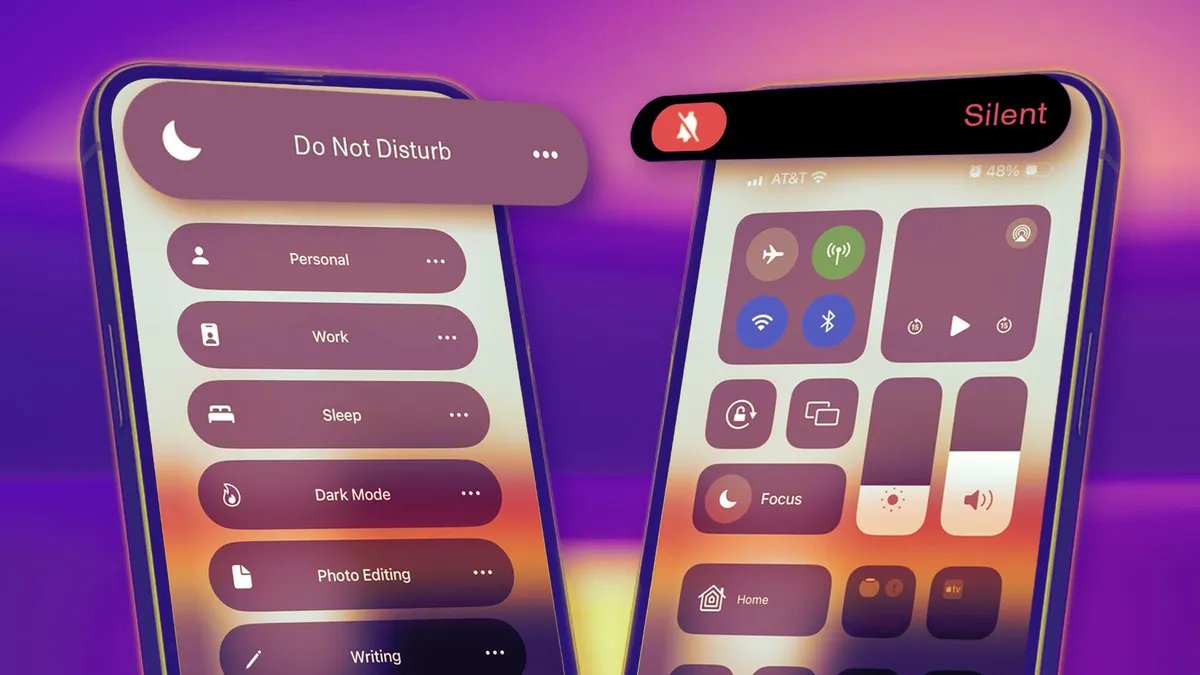
There are plenty of reasons you may want to temporarily mute notifications on your iPhone, like if you’re in an important meeting or just need a screen time break. You have two easy ways to go about this on iOS: Silent mode and Do Not Disturb.
Here’s the difference between each setting and when it may be best to choose one over the other.
Silent mode
The go-to method for silencing your phone is typically the switch above the volume buttons on the left side of your device.
Depending on your iPhone model, you can either hold down the Action button (on the iPhone 15 or later) or switch the toggle (iPhone 14 or older) to silence any pings or incoming phone calls. If you have a phone with Dynamic Island, you’ll see text at the top of your phone indicating you’ve turned on Silent mode. Otherwise, a confirmation pop-up will appear on your screen.
If you have an Action button, hold it down until you feel haptic feedback. (You can also customize the Action button for other commands, like launching your camera or recording audio.)
Silent mode won’t stop your phone from vibrating when you get a notification, but there’s a way to turn that off, too.
While the ring/silent switch mutes all alerts and notifications (along with sound effects and game audio), your iPhone may still vibrate when you receive a call. And your screen will light up with the arrival of a phone call or text. You can stop your iPhone from buzzing when in silent mode by going to Settings > Accessibility > Touch, then hitting the toggle next to Vibration to turn it off. (Note that this also disables vibrations for earthquake, tsunami and other emergency alerts.) But you can’t stop the screen from lighting up, which brings us to our next section.
Do Not Disturb
When Do Not Disturb is enabled, your iPhone will stay silent and with its screen off, though there are some exceptions and customizations you should know about.
You can quickly turn on Do Not Disturb from your iPhone’s Control Center.
But first, let’s go over the two ways to enable Do Not Disturb. The easiest way is to pull up your phone’s Control Center — swipe down from the upper-right corner of the screen if you have an iPhone X or newer, or up from the bottom edge of the screen on an iPhone SE and iPhone 8 or earlier. Then tap the crescent moon button to turn on Focus mode. You can also go to Settings > Focus > Do Not Disturb.
The great thing about Focus modes is that you can customize them for different purposes and times of day. Want to block TikTok and Instagram notifications while you’re at work to avoid distractions? You can set that up in a Work focus mode so you’re getting only critical notifications from work-related apps. Want to make sure you’re receiving only calls from family members when your Personal Focus mode is on? You can customize that, too. The Sleep focus mode is great for automatically silencing all notifications to prep for bedtime so you’re not tempted to look at your screen.
Within the Do Not Disturb settings, you can also click on People to customize who you allow calls from: Everybody, Allowed People Only (which you select), Favorites or Contacts Only. You can also hit the toggle next to Allow Repeated Calls. This will ring your device if the same person calls again within 3 minutes, so you don’t miss any potential emergencies.
When to choose Silent mode vs. Do Not Disturb
The key distinguishing factor between Silent mode and Do Not Disturb is just how silent you want your phone to be. If you want to mute notifications, calls and texts, but still see them rolling in, turning on Silent mode is probably your best bet. But if you want to fully block all pings and stop your phone’s screen from lighting up for a while, then you’ll want to opt for Do Not Disturb.
If you generally keep your iPhone out and about — in your hand, on your lap, on a table or desk — then Do Not Disturb is the better option so that your screen suddenly lighting up doesn’t distract other moviegoers, your classmates (or more to the point, your teacher or professor) or those around you at a religious service, for instance. It’s also just a great way to avoid the temptation of picking up your phone each time a notification comes in.